Source Data Verification Guide
How Arion turns protocol-level SDV strategy into a traceable review workflow — from study configuration to discrepancy resolution, PI signature, and lock.
This is a feature guide, not a role manual. Follow the SDV lifecycle from left to right and use the role notes only to understand who acts at each point. Exact actions remain permission-based: if an action described here is not visible, check the member's organization role and center scope.
01 How SDV works in Arion
Source Data Verification (SDV) is the controlled comparison of data captured in Arion against its source. Arion separates the verification plan from the verification record: study design determines what must be checked, while reviewers record the outcome against the actual patient visit, form, or field value.
One feature, five connected stages
SDV is evidence about a specific version of data. Verification does not make data immutable. If the value changes later, Arion invalidates the affected verification state so the new value cannot inherit an old review.
02 Who touches the workflow
The workflow crosses several roles, but access is determined by permissions and organization/center scope rather than by this guide's structure.
| Workflow responsibility | Typical roles | What they do |
|---|---|---|
| Design the plan | study_builder, study manager, admins | Set Full SDV coverage and the query/signature/lock policy. A Study Builder configures the workflow but does not receive reviewer actions by default. |
| Capture and correct data | Site PI, site coordinator | Enter source-derived values and respond to promoted/open queries. Center-scoped users do not see the reviewer SDV workspace. |
| Perform SDV | cra_monitor, data_manager, authorized admins | Use the SDV queue, verify targets, flag discrepancies, and create/review linked queries when permitted. |
| Sign | Site PI | Signs the casebook when configured readiness requirements are satisfied. |
| Lock | Data management, monitor, study management, authorized admins | Apply the appropriate form, visit, patient, or database lock after review; exact lock authority varies by role. |
Do not infer review authority from broad study visibility. The dedicated SDV pages and patient SDV shortcuts require verify_sdv; linked-query creation separately requires create_queries.
03 The verification plan
In Study Design → Data Review → Source Data Verification, first choose the study-wide strategy. The default, Use configured hierarchy, resolves every field value to either Full SDV or No SDV. Within that hierarchy, Full SDV is additive across the field, page, and visit levels:
Field
Requires that field wherever it appears. Use it for intrinsically critical data points.
Page
Requires every field on the page across every visit containing that page.
Visit
Requires every field on every linked page for that visit only. This is the most visit-specific control.
Full SDV is an additive requirement
| Study-wide strategy | When to use it | Effect |
|---|---|---|
| Use configured hierarchy | Targeted, protocol-specific SDV. | Uses the Full SDV rules configured on fields, pages, and visits, plus the separate eligibility setting. |
| Full SDV | Every configured data point must be reviewed. | Temporarily overrides the hierarchy and includes eligibility decisions. Arion asks for confirmation before applying it. |
| No SDV | The study does not require source-data verification. | Temporarily overrides all SDV coverage, including eligibility. Existing rules remain saved so the hierarchy can be selected again later. Arion asks for confirmation before applying it. |
04 Configure SDV coverage
- Open the study in Study Design, then open Data Review.
- Under Source Data Verification, select Use configured hierarchy.
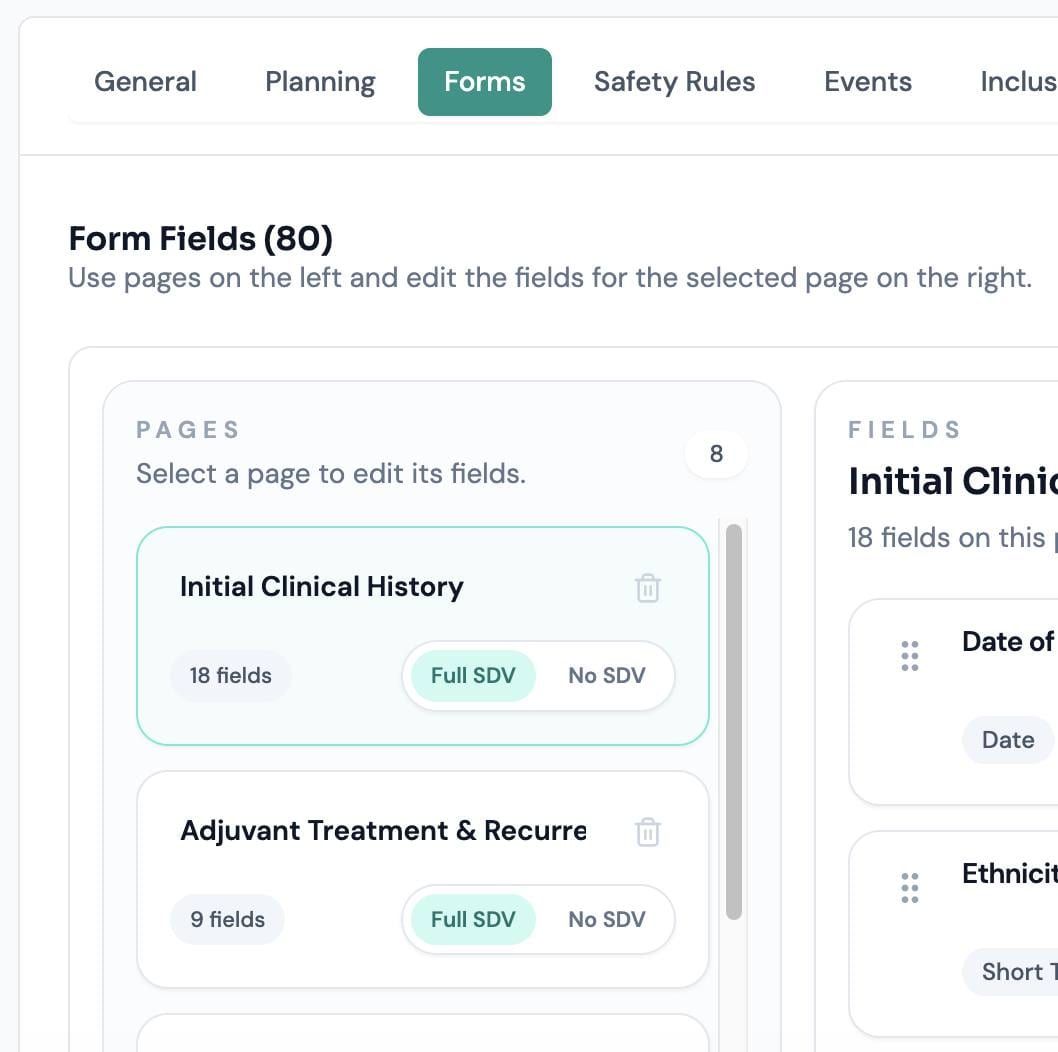
- In Forms, set a page to Full SDV when all of its fields require verification.
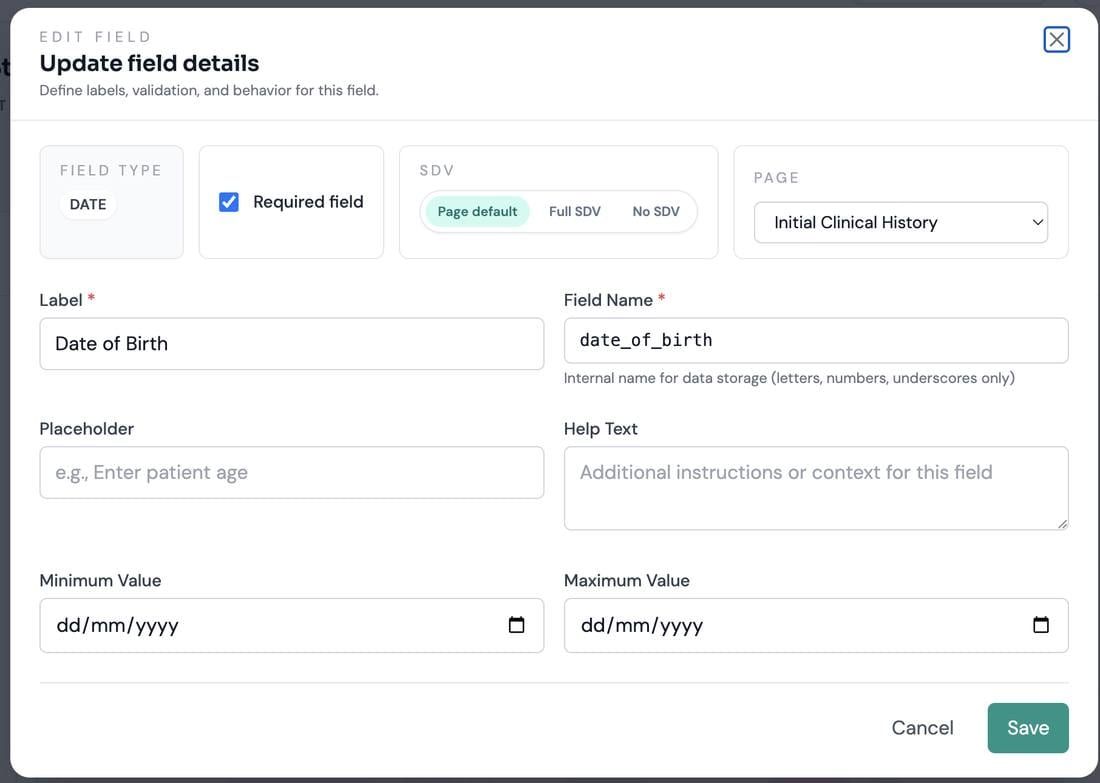
- Open a field editor and choose Inherit, Full SDV, or No SDV. Remember that No SDV does not override Full SDV from the page or visit.
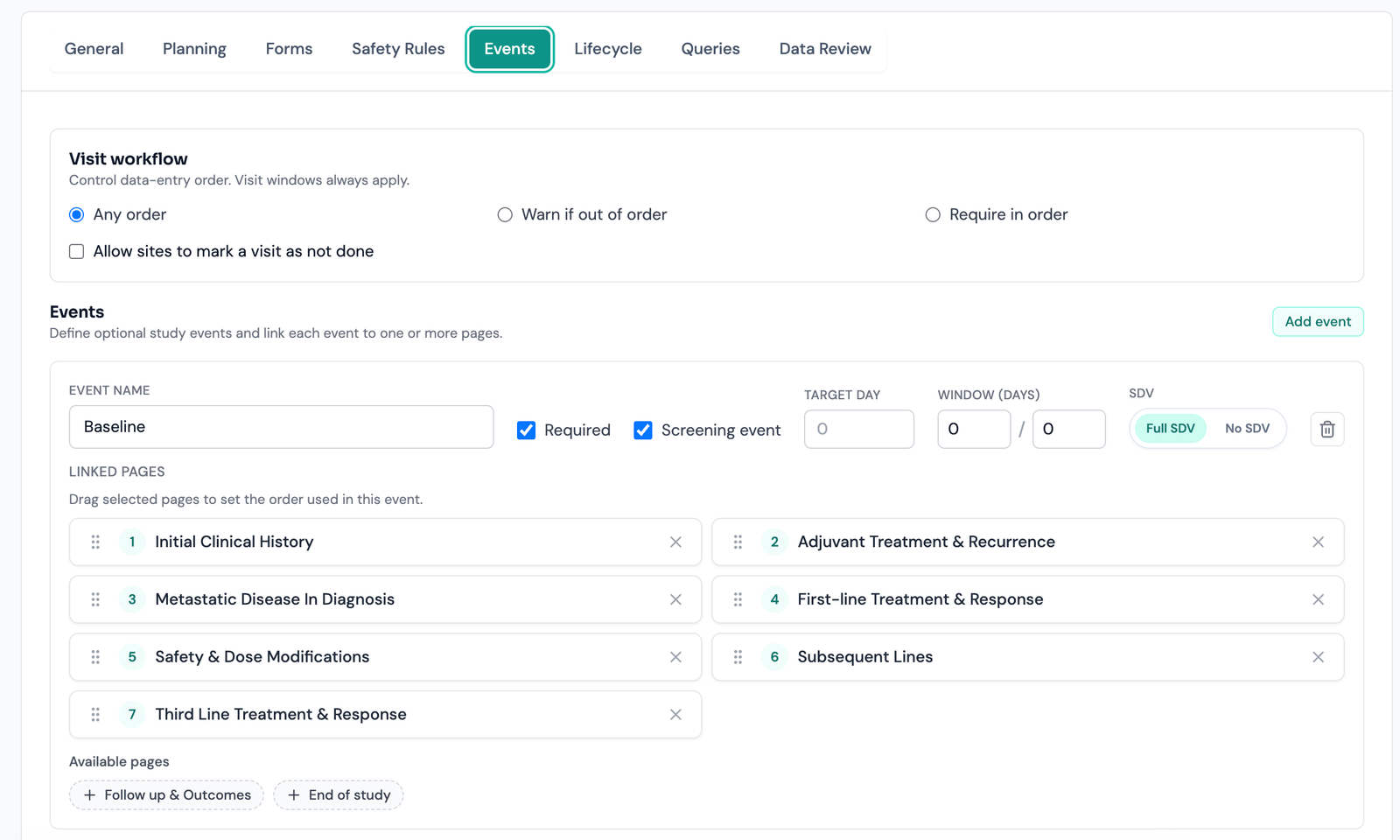
- In Events, set Full SDV when one visit needs broader coverage than the same pages need elsewhere.
- Save the design. Arion derives the concrete field-and-visit verification plan.
05 Configure review policy
Coverage answers what must be verified. The Source Data Verification section of Data Review controls the study-wide strategy and the eligibility decision; the Queries, PI Signature, and Lock sections control what happens after review.
| Setting | Behavior |
|---|---|
| Eligibility SDV | Available when the study-wide strategy is Use configured hierarchy. Full SDV creates one pending review record for each decided eligibility assessment, whether the result is eligible or screen failure. The default is No SDV. |
| Study-wide Full SDV / No SDV | These confirmed overrides also apply to eligibility and disable the individual Eligibility SDV selector until Use configured hierarchy is selected again. |
| Generate a query for every SDV discrepancy | Always creates a linked query when a reviewer flags a discrepancy. The configured initial status is Candidate or Open. |
| Manual query choice | When automatic discrepancy queries are off, a reviewer with create_queries can choose whether to create an Open query while flagging the discrepancy. |
| Require SDV before PI signature | Blocks PI signature while required SDV remains pending or discrepant. This setting is available only when the study has at least one active SDV scenario; selecting No SDV disables and clears it. |
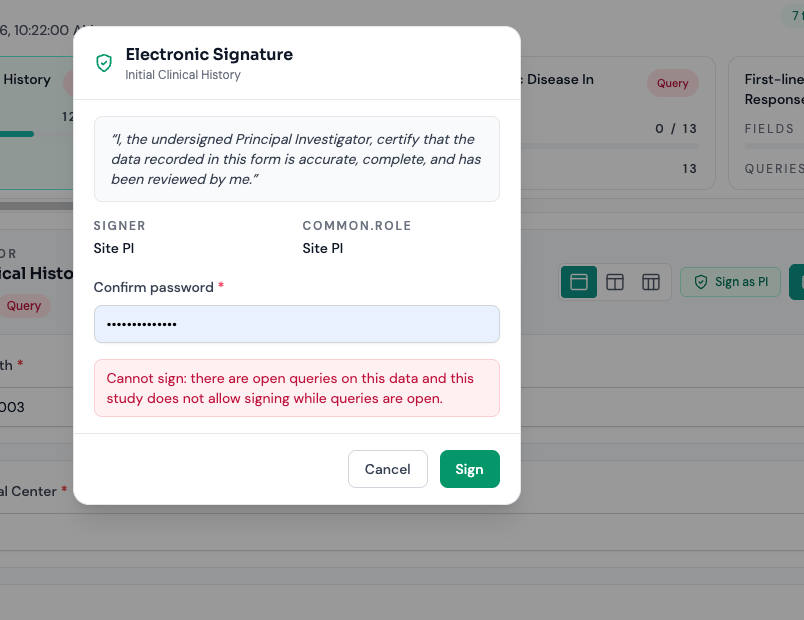
| Signing with open queries | Allow, allow with a warning, or block. |
| Require PI signature before lock | Makes a valid PI signature part of lock readiness. |
| Locking with open queries | Block, or allow a documented exception using the mandatory lock reason. |
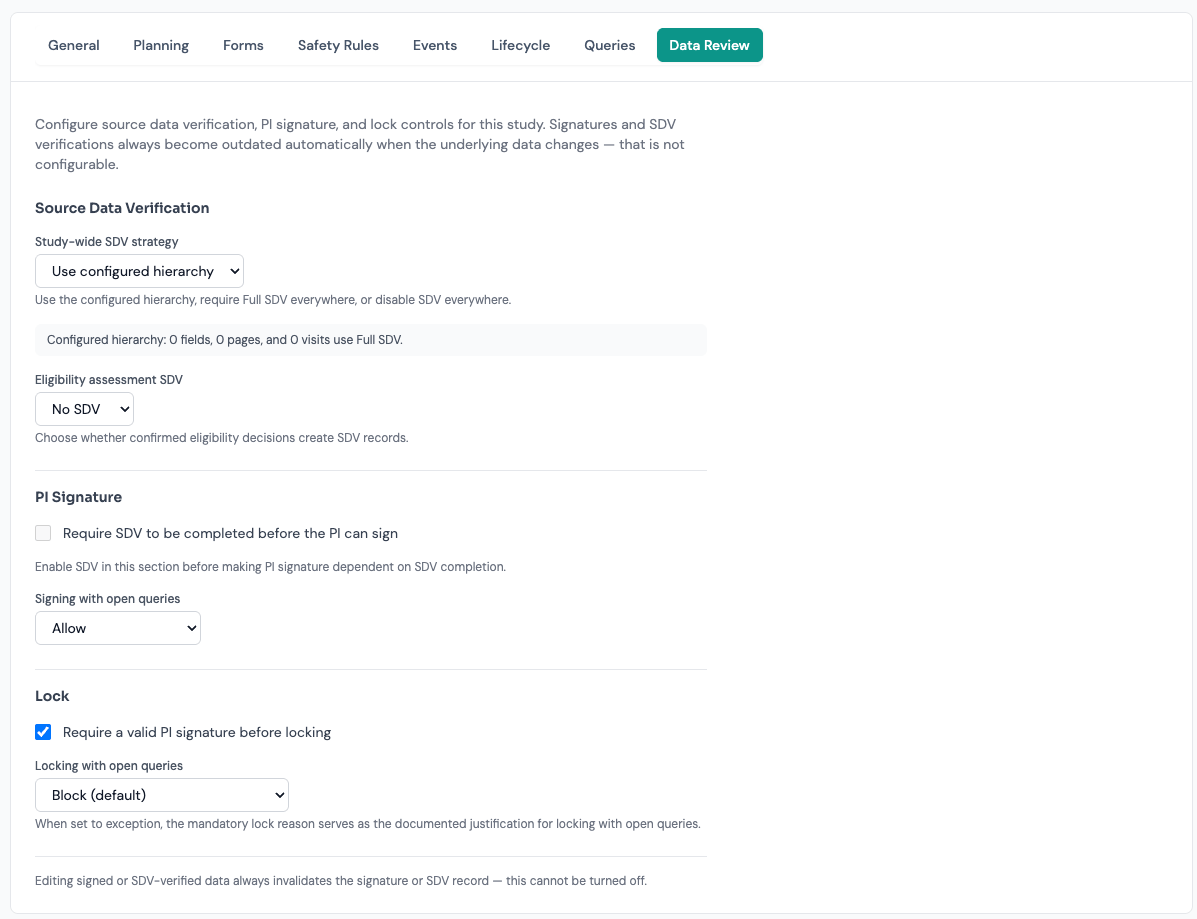
Invalidation after an underlying data edit is not a configurable policy. Arion always resets affected SDV records and invalidates affected signatures.
06 Data capture and readiness
Site teams enter and correct clinical data in the patient casebook. SDV configuration does not change how a field is entered and does not block saving. It determines whether the resulting operational value enters the review plan.
- A field with resolved Full SDV contributes a pending item when its operational value exists in the applicable visit/form context.
- Site and center-scoped roles work in the casebook and Queries areas; they do not verify their own data through the reviewer workspace.
- Non-center users with
verify_sdvsee SDV counts in the Study patient matrix and can open the dedicated review workspace. The Patient list's Source Data Verification column and Pending SDV filter appear only when the selected study has an active SDV scenario; they are hidden for No SDV. - The casebook's Verify Page shortcut routes authorized reviewers to the same patient SDV page and focuses the selected form.
Form completion describes data-entry completeness. SDV status separately describes source review. A complete form can still contain pending or discrepant SDV items.
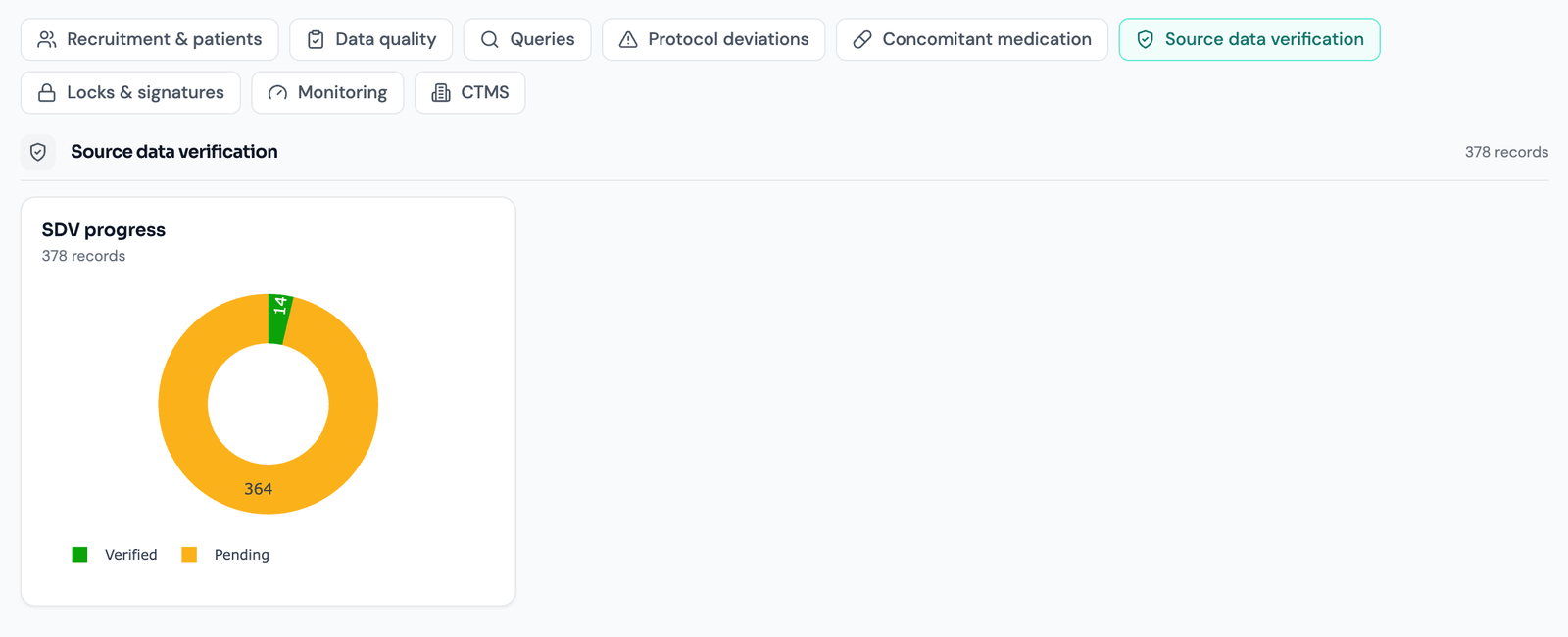
07 Triage the SDV queue
The study-level SDV workspace is the review queue. It summarizes Required, Verified, Discrepancy found, and Pending counts and lists progress per patient.
- Select a KPI card to filter the patient list by that review state.
- Use Pending to identify work not yet reviewed and Discrepancy found to prioritize unresolved findings.
- Compare Verified against Required to understand progress; discrepancies remain distinct from successful verification.
- Choose Open records for the patient you want to review.
08 Review a patient
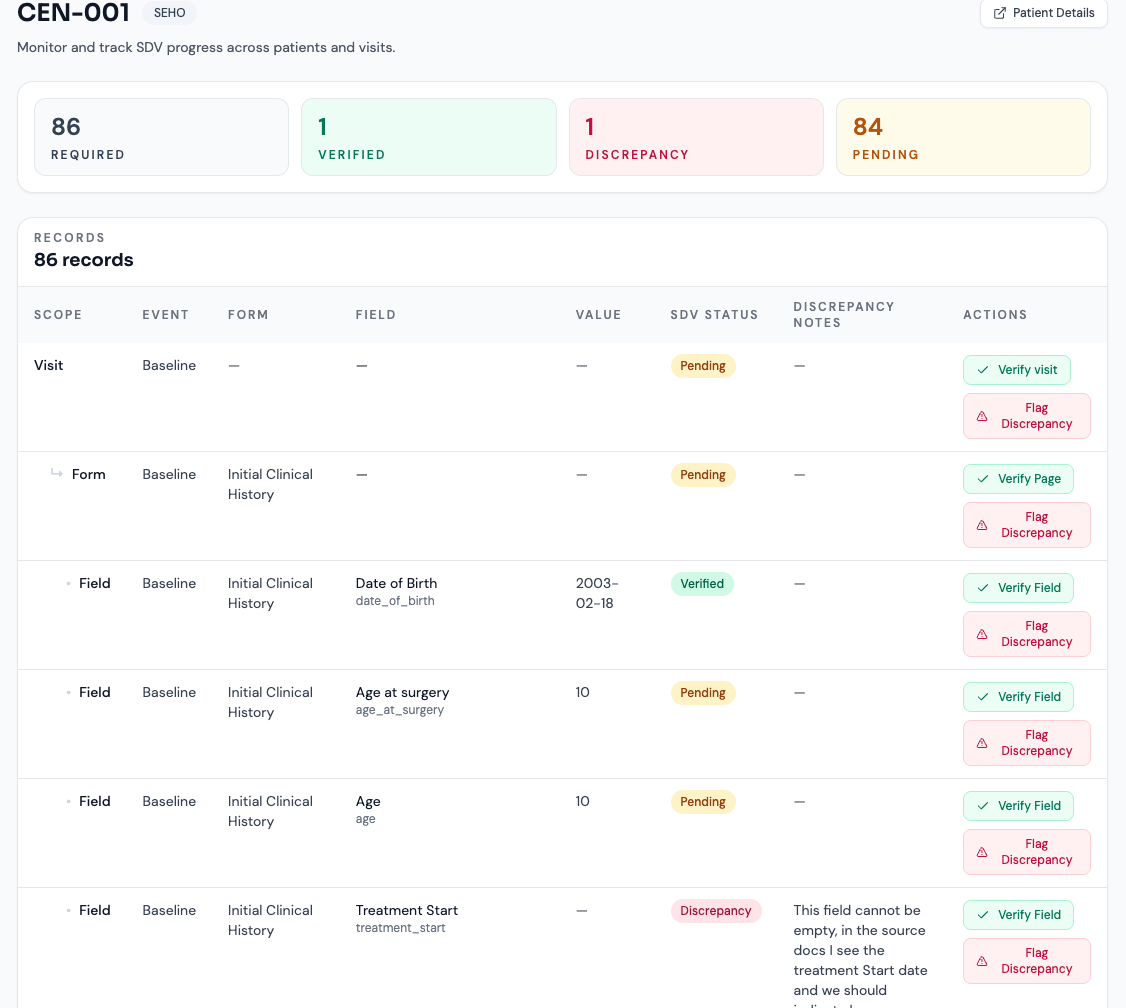
The patient SDV page presents a hierarchy of visit → page/form → field value. Filtering keeps the matching record together with its parent and child context, so a field finding is never shown without the visit and form it belongs to.
| Action | Use it when | Result |
|---|---|---|
| Verify field | You compared one required value with source. | The field record becomes Verified. |
| Verify page | You reviewed the required values on the whole form. | The form becomes Verified and pending required fields on that form are verified in bulk. Existing discrepancy findings are not silently overwritten by the bulk action. |
| Verify visit | You are recording review at the occurrence level. | The visit record becomes Verified; use the individual page/field rows to retain granular outcomes. |
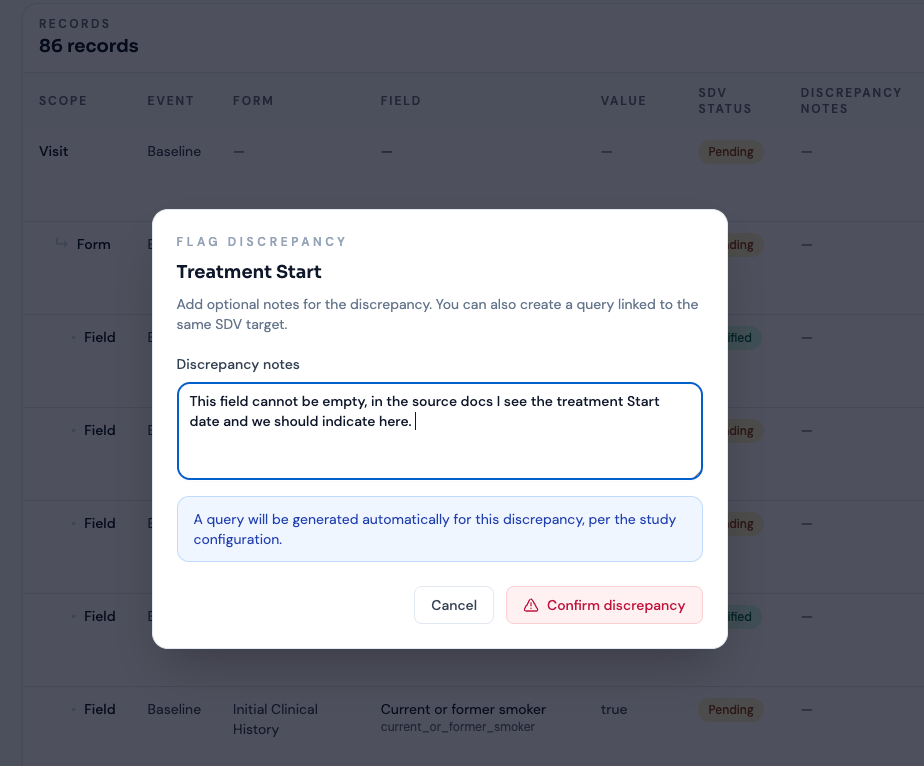
| Flag discrepancy | The source and recorded data do not agree, or another review issue requires follow-up. | The selected target becomes Discrepancy found, with notes and optional/automatic linked query handling. |
09 Discrepancies and linked queries
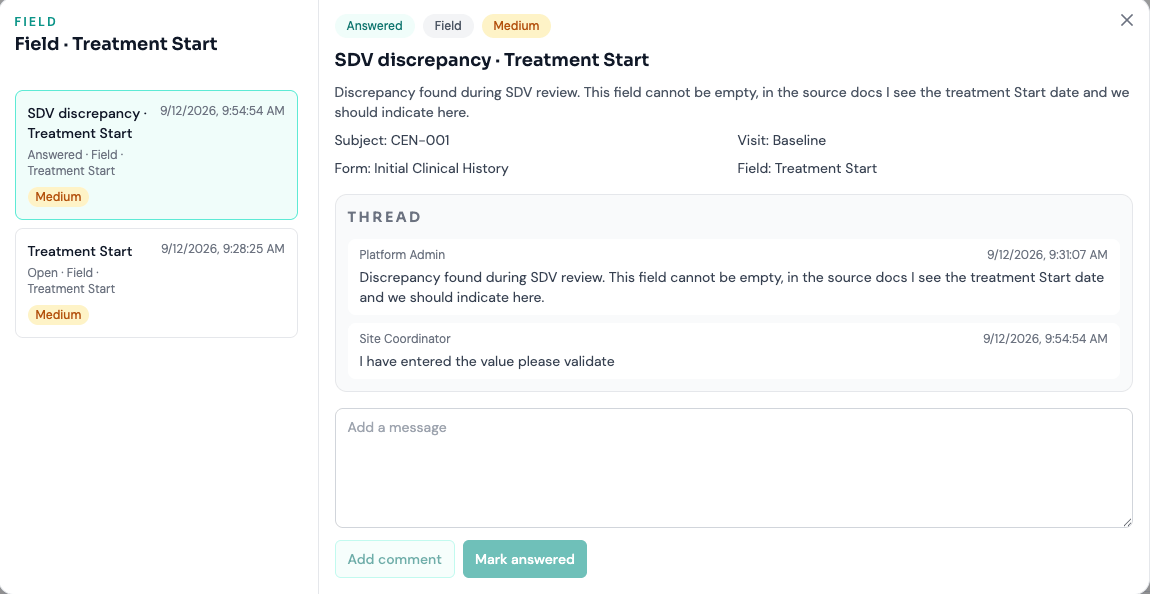
A discrepancy is an SDV finding. A query is the controlled conversation used to resolve it. The two records are linked when the reviewer creates a query or the study policy generates one automatically.
From finding to resolution
10 Changes after review
When a reviewed field value changes, Arion resets verified or discrepant SDV records for the affected field, its form, and its visit back to Pending. This cascade prevents a parent form or visit from appearing reviewed after one of its underlying values has changed.
- The site or another authorized editor changes a field value.
- The affected field, form, and visit verification chain returns to Pending.
- Any valid signature covering the changed data becomes outdated.
- The patient returns to the review queue and must be checked against source again.
Verified means the reviewer attested to the data version that existed at that time. Audit history preserves who acted and when; current readiness follows the current data.
11 PI signature and lock
SDV can participate in a controlled sequence, but the Study Builder decides which gates are mandatory. A common configured path is:
Configured review gates
12 Quick reference
Coverage rule
Use configured hierarchy is the default. Within it, Full SDV at field, page, or visit makes the applicable value required. Study-wide Full SDV and No SDV temporarily override that hierarchy.
Operational statuses
Pending · Verified · Discrepancy found. No SDV values appear as Not required in patient context.
Reviewer access
The SDV workspace requires verify_sdv. Query creation additionally requires create_queries, unless study policy generates the query automatically.
Bulk verification
Verify Page handles the required records on one form. Review existing discrepancies deliberately; bulk verification does not silently erase them.
Corrections
An underlying field edit resets the affected field/form/visit SDV chain to Pending and invalidates affected signatures.
Resolution
When a discrepant target becomes Verified, Arion automatically closes its still-open linked query and records why.