Site User Guide
A practical, step-by-step guide for Site Principal Investigators and Site Coordinators — how to run your patients, casebook and review work day to day.
This guide explains how to use Arion day to day from a site (center) perspective. It is written for the two center-scoped roles, Site PI (site_pi) and Site Coordinator (site_coordinator). Both roles do almost the same work; the few differences are called out where they matter.
01 What Arion is and how it fits together
Arion is an electronic clinical data capture and study operations platform covering the full lifecycle of a study: study setup and eCRF design, patient registration and casebook capture, monitoring of data quality and completeness, review workflows (queries, SDV, protocol deviations), reporting and analytics, and organization/role/center management.
Everything about a study lives in one controlled environment. Site teams register patients, capture visit data, and respond to review items, while study managers, data managers, and monitors supervise progress from the same platform.
How the pieces relate
Scope model
- Organization is the top-level scope. All your work happens inside an organization context.
- Center (your site) is a sub-scope inside the organization. As a site user you are assigned to a center, and your patient-facing actions are limited to it.
- Study defines what data is collected and how — events (visits), pages and forms, fields and validation, eligibility criteria, SDV settings, and safety rules.
- Patient belongs to a center within a study. Around each patient sit the visits, forms, queries, medications, and deviations that make up the casebook.
A study moves through draft → testing → production. Patient workflows exist only in testing and production. You will normally work in a production study, where the design is fixed and you focus on operational work.
Much of what you can do is decided by how your study was configured. One study may let you enter visits in any order while another requires them in sequence; one may use a screening period while another enrols patients directly. Where that is the case, this guide says so.

02 Your role as a site user
The two center-scoped site roles are the main patient-facing roles in the platform, deliberately restricted to their assigned center.
| Action | Site PI | Site Coordinator |
|---|---|---|
| View patients in their center | Yes | Yes |
| Register patients and record eligibility decisions | Yes | Yes |
| Enrol patients, record screen failures, rescreen where allowed | Yes | Yes |
| Register visits and edit visit forms | Yes | Yes |
| Withdraw, complete, and reopen patients | Yes | Yes |
| Manage concomitant medications | Yes | Yes |
| Answer queries | Yes | Yes |
| Create and answer protocol deviations | Yes | Yes |
| Sign as PI | Yes | No |
| Grant an eligibility waiver | Reviewer only | Reviewer only |
The differences
The Site PI can additionally sign as PI. The Site Coordinator does the same patient and visit work but does not perform PI signature actions.
Separately, if your study sets Eligibility confirmation to “Principal investigator,” the enrolment action must be performed by a Site PI and requires that PI's password confirmation. If it is set to “Site coordinator,” either role can enrol.
What you cannot do
Some review actions belong to oversight roles. Notably, eligibility waivers (overriding a failing criterion) require reviewer permission — a medical monitor or study manager — and are not available to site roles.
03 Getting started: login, organization, and center context
- Log in with your account (email/password or Google sign-in, depending on your organization).
- Confirm the correct organization is active — it is applied to every action.
- Confirm your center context. Your visible patients and available actions are limited to your assigned site.
- Select the study you are working on.
It is usually one of three things: the wrong organization is active, the wrong center is in context, or your role does not include that action. Raise it with your study manager or organization administrator.
04 Finding your way around (navigation & dashboard)
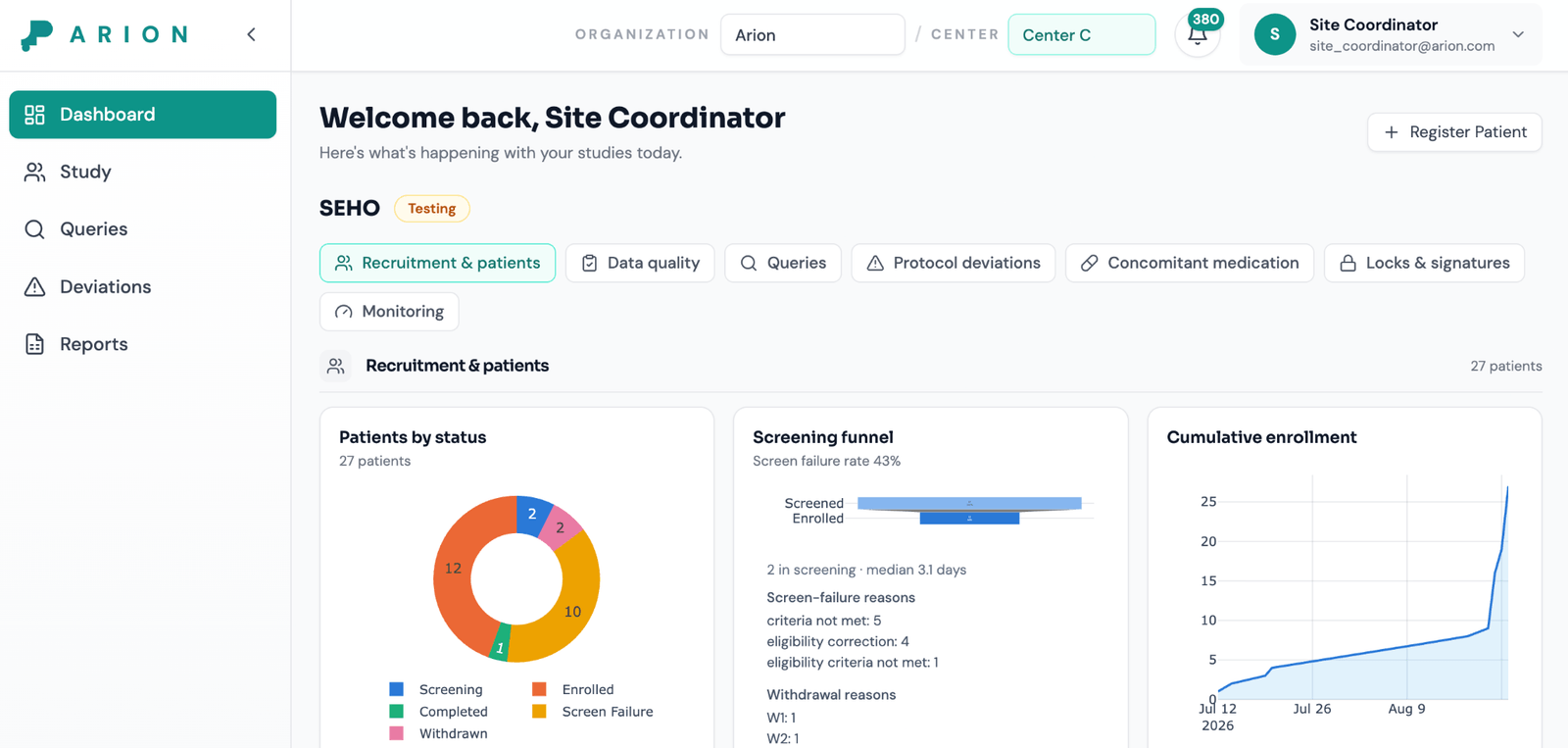
The Study Dashboard gives a high-level picture of study progress and helps you move from general status to the items needing attention. It can surface patient volume, enrolment progress against expected sample size, missing-data indicators, query volume, SDV progress, deviation patterns, center-level distribution, and recent activity. Where a study uses screening, the dashboard also shows a screening funnel with screening duration and failure-reason breakdowns.
Several charts are interactive shortcuts — into the patient list filtered by status, the Queries workspace filtered by unresolved severity, the Deviations workspace filtered by severity or category, or a patient with high missing-field counts.
Work summary first, action second.
05 Registering a patient
Registration is your entry point into the patient workflow. What happens next depends on whether your study has a screening period enabled.
Step by step
- Make sure the correct study and your center context are active.
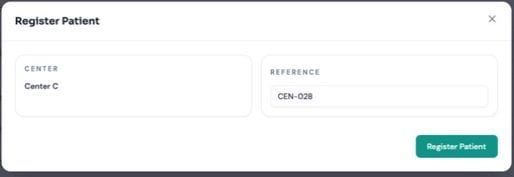
- From the Study Patient List (or dashboard), choose Register patient.
- Enter the external reference — the identifier your site uses operationally. Arion keeps it visible throughout the workflow so the patient is easy to recognize.
- Select the center, if you have more than one available.
- Confirm and create the patient.
What status the patient starts in
- If the study has a screening period: the patient is created in Screening — not enrolled. Only events designated as screening events are open for data entry. The patient becomes enrolled only after you record an explicit eligibility decision and take the enrolment action (section 6).
- If the study has no screening period: registration behaves as a direct entry into the study and the remaining visit schedule is available.
While a patient is in screening, the patient list shows a days in screening value, so you and your monitors can see how long subjects have been pending.
06 Eligibility, enrolment, and screen failure
This is the area that changed most. Eligibility is no longer a single yes/no gate inside the registration pop-up — it is a working assessment on the patient record that you build up as screening data arrives.
Patient lifecycle
How eligibility criteria work now
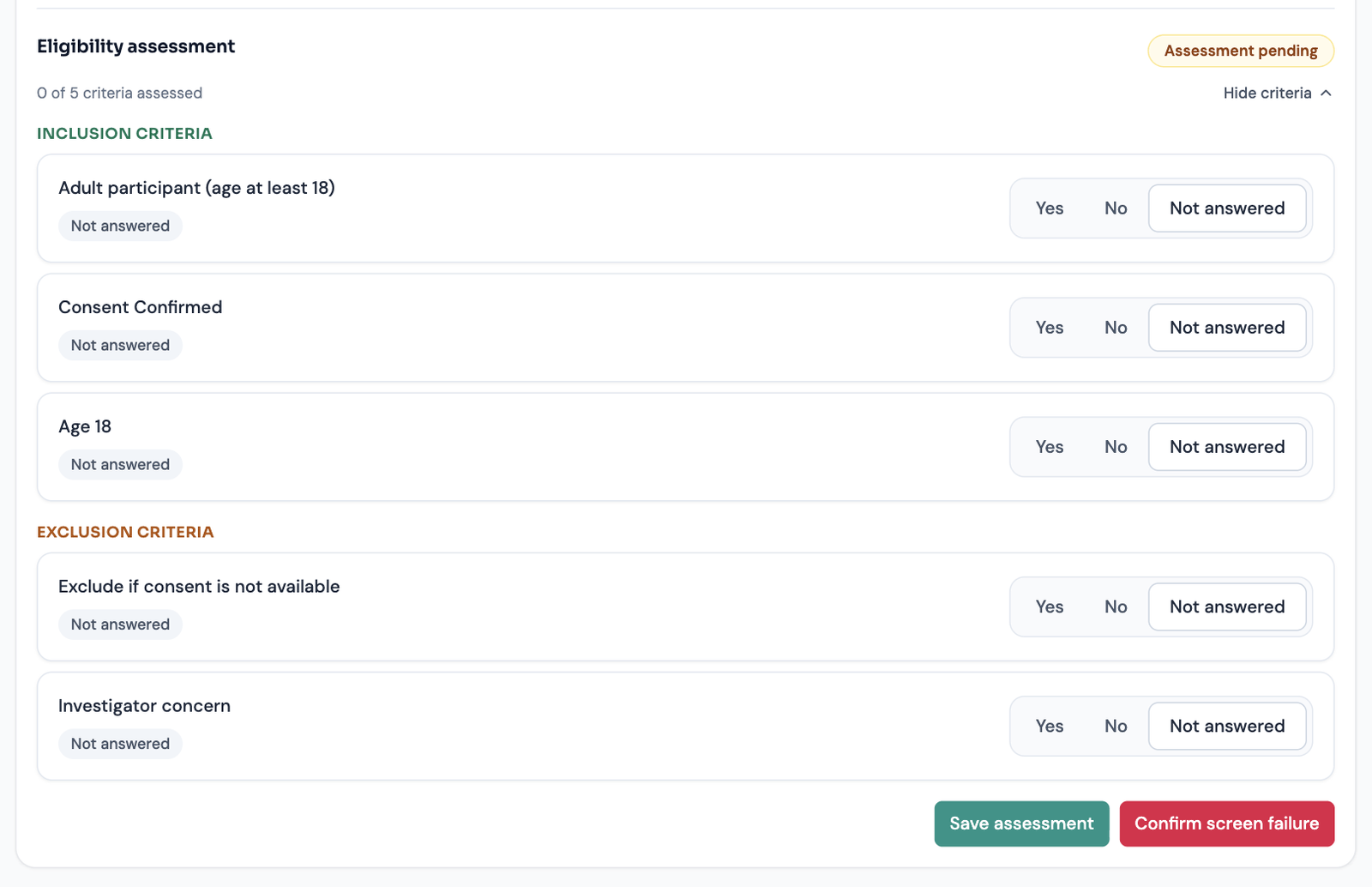
Each criterion offers three buttons — Yes No Not answered — and every criterion starts as Not answered. A header chip tracks your progress (for example Eligibility · 0/5 assessed), and the panel shows Assessment pending until the picture is complete. Criteria come in three flavours, set by the study designer:
- Manual — you record the answer yourself.
- Field-bound — evaluated automatically from a screening field you have entered (for example, age at least 18).
- Formula — evaluated from an expression over screening data.
For computed criteria you can open the evidence to see the source field and value behind the verdict, and jump back to the screening visit that holds it.
- Pending never fails a patient. An unanswered criterion — or a computed criterion whose source value is missing — leaves the assessment pending. It will never silently produce a screen failure.
- Use Save assessment as you go. The panel has its own Save assessment button, so you can record partial answers, leave, and come back. You do not have to complete all criteria in one sitting.
Enrolling a patient
- Open the screening visit and enter the screening data.
- Return to the patient profile and work through the Eligibility panel, answering the manual criteria. Computed criteria fill in from your data.
- When all inclusion criteria are met and no exclusion criterion applies, the verdict becomes Ready to enrol.
- Choose Enrol subject. Supply the clinical enrolment date and an audit comment. If your study requires PI confirmation, a Site PI completes the password prompt.
Once enrolled, the remaining scheduled events materialise and the status chip changes to Enrolled. The enrolment is recorded in history with actor, timestamp, and before/after values.
If a criterion fails but the study allows waivers and that criterion is marked waivable, a reviewer (medical monitor or study manager) can grant a waiver — with an approval reference, date, and justification — after which enrolment becomes available to you. A waiver automatically creates a linked protocol deviation. Site roles cannot grant waivers themselves.
Recording a screen failure
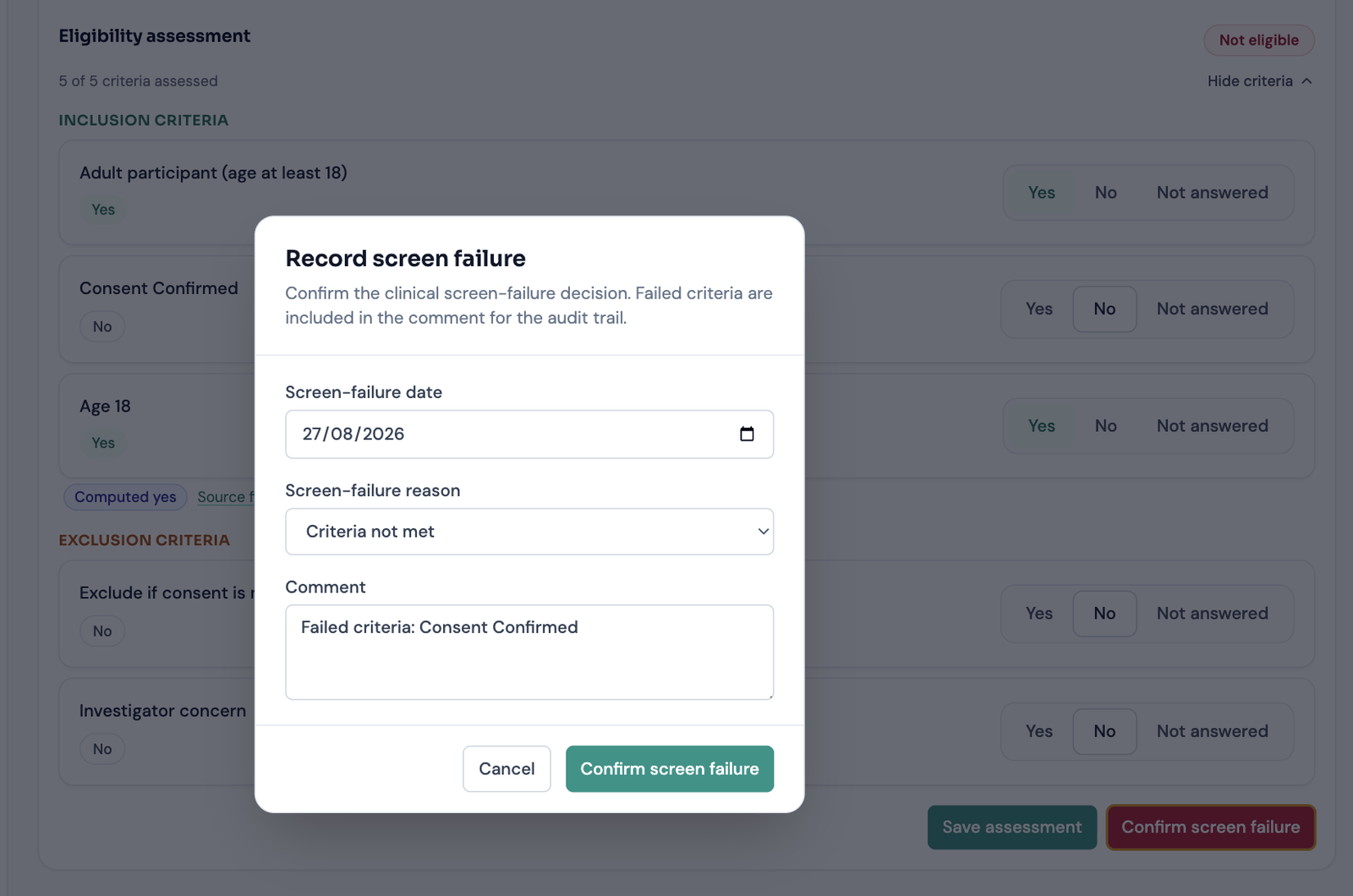
- From the eligibility panel, choose Confirm screen failure.
- Select a reason from the study's configured list. Where criteria have actually failed, the dialog suggests them.
- Enter the clinical date and a comment, then confirm.
A screen failure always stores a reason code and a clinical date. You can record one for reasons unrelated to the criteria — consent withdrawn, for example — without any criterion failing. Afterwards the casebook becomes read-only and the status is Screen failure.
Rescreening
If the study allows rescreening, open the failed patient and choose Rescreen. Arion creates a new linked screening record — the original failed assessment is preserved, not overwritten, and the two records link to each other. Depending on study configuration the rescreened subject gets a new subject code, and previously entered form data may be copied across.
07 Withdrawal, completion, and reopening
Withdrawn and Completed are terminal participation states.
Manually
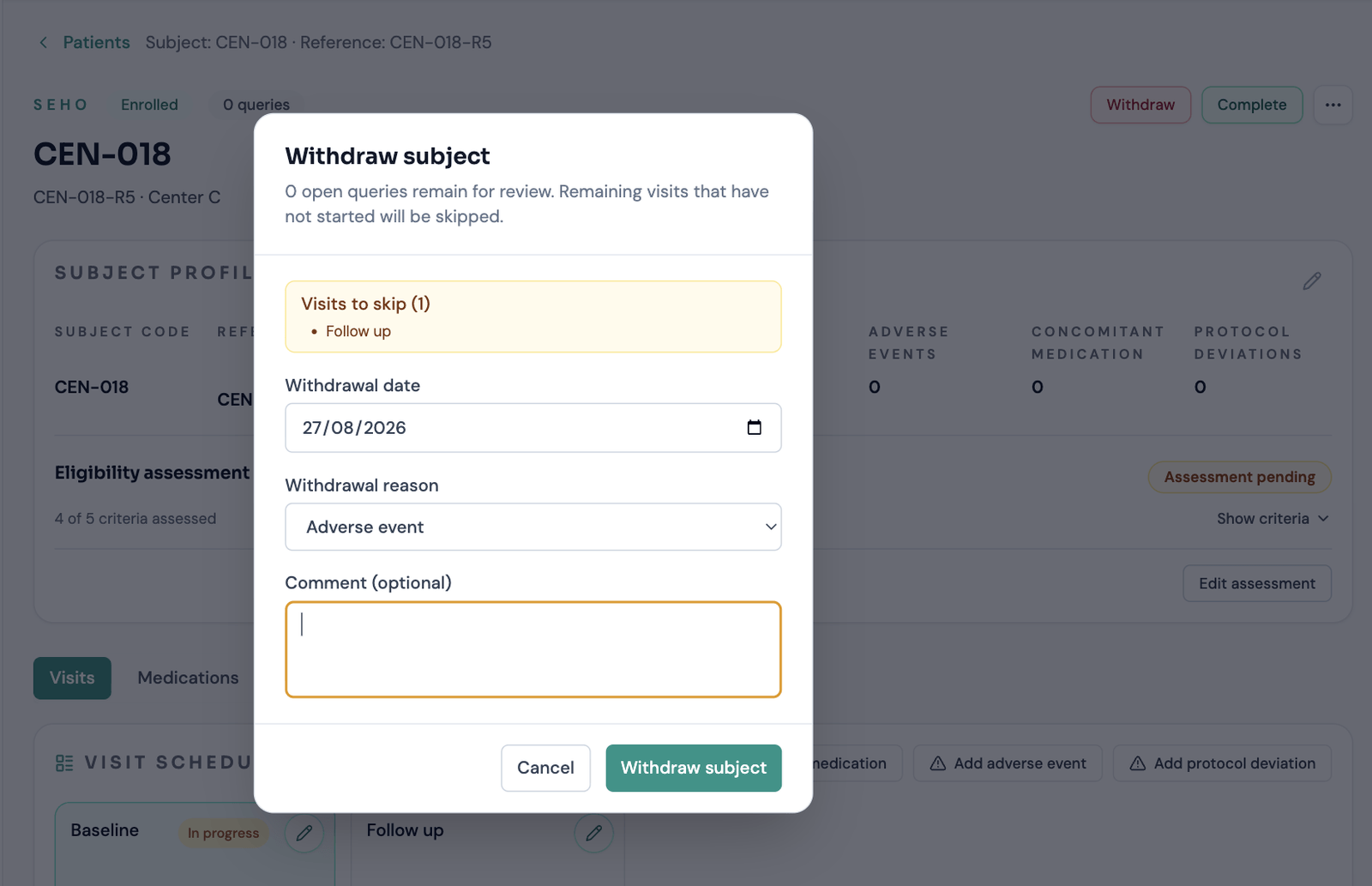
Use the Withdraw subject or Complete subject action on the patient, supplying a clinical date and a withdrawal reason where applicable.
What happens when you withdraw or complete
Before confirming, Arion shows you what the transition will do, including the unstarted visits that will be skipped and the number of open queries. Then:
After a terminal transition
- Future unstarted visits are skipped. Work already in progress is left untouched.
- Open queries stay open. They are shown as a warning, not closed automatically — you still need to resolve them.
- Scheduled visits and normal form editing are blocked.
- Safety data remains available. You can still add adverse events, concomitant medications, and unscheduled safety follow-up visits. This is deliberate — safety follow-up does not stop when participation does.
Stopping treatment is not the same as withdrawing. A patient can be recorded as having discontinued treatment while remaining Enrolled; this shows as a badge on the patient header and appears in history separately from participation status. Use withdrawal only when the subject leaves the study.
Reopening
If a patient was withdrawn or completed in error, use Reopen and supply a reason. This restores them to Enrolled, clears the terminal timestamp, and restores the skipped visits. Reopening is refused if the patient is locked — ask your data manager or monitor to unlock first. Every reopen is audited.
08 Working with the Study Patient List
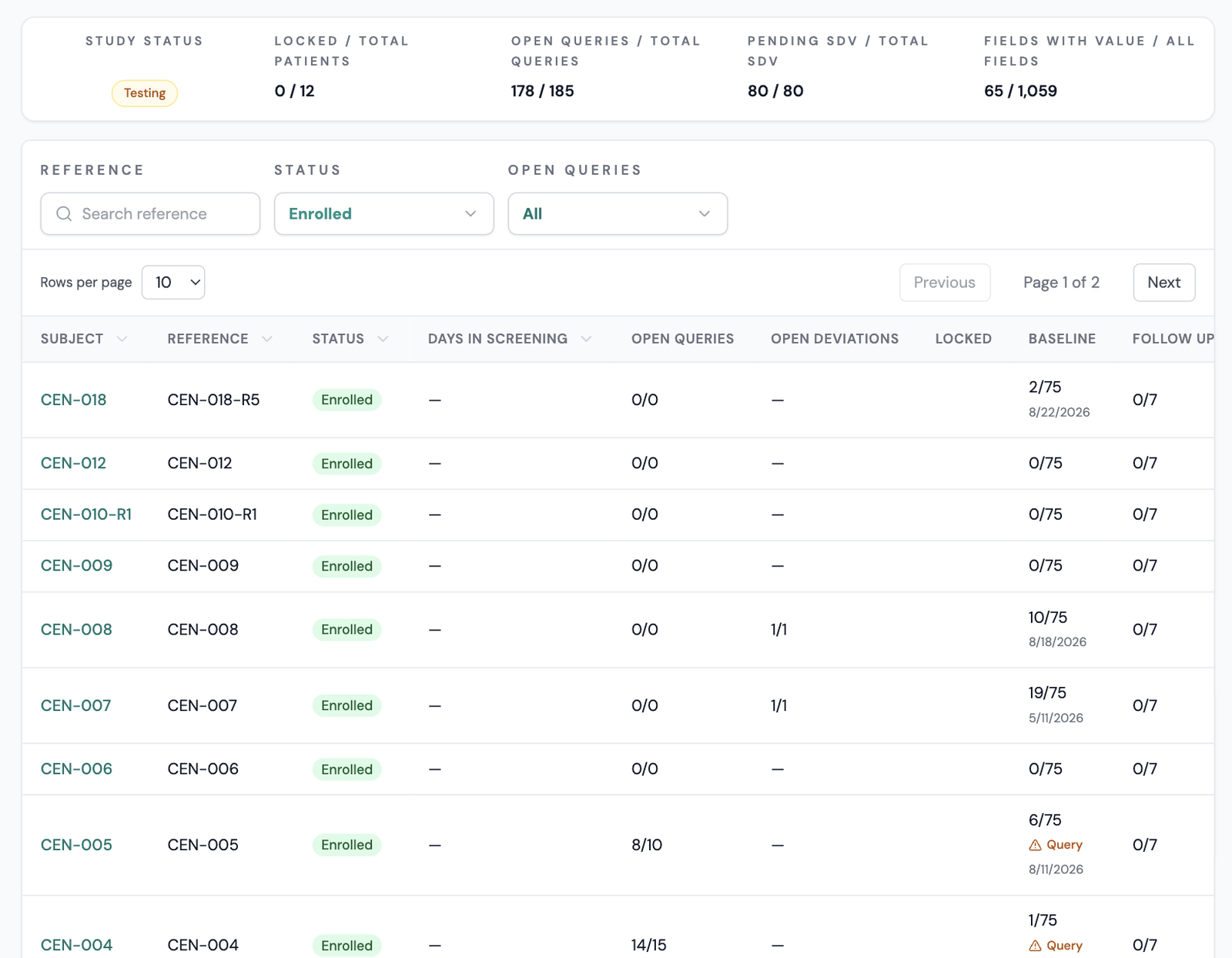
The patient list is the main operational screen for managing your patients — a matrix showing identity, status, and center alongside visit-level progress.
What you can see
- Patient identifiers and your external references
- Status — Screening, Enrolled, Screen failure, Withdrawn, Completed — and center context
- Days in screening for subjects still pending eligibility
- Review summaries (open vs total queries, SDV progress, deviation counts, lock states)
- Per-visit completion indicators
Reading visit completion
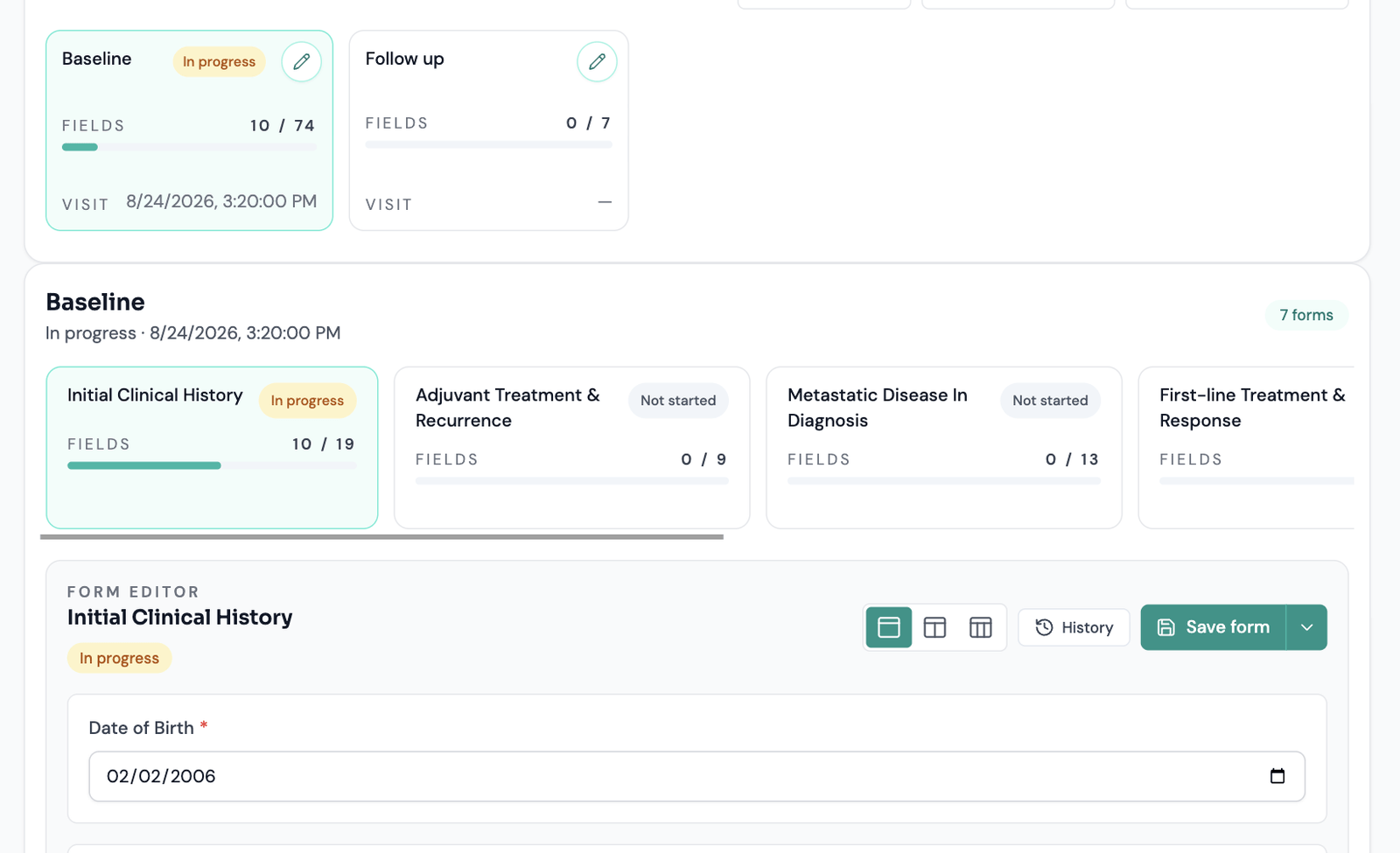
Each visit cell shows completion as filled fields out of total expected fields, so you can tell a fully complete visit from a partially progressed one. A visit becomes complete when it has a visit date and every form in it is complete.
Filtering and navigation
Filter by status (including screening and screen-failure), center, external reference, patients with unresolved queries, or SDV state. Filters are held in the page URL, so you can refresh, bookmark, or share a filtered view. Click any row to open the patient.
Importing patient data
You can import patient-related study data from spreadsheets (CSV, XLS, XLSX); imported data lands inside the study's structured visit and patient model.
09 The patient casebook: visits and visit order
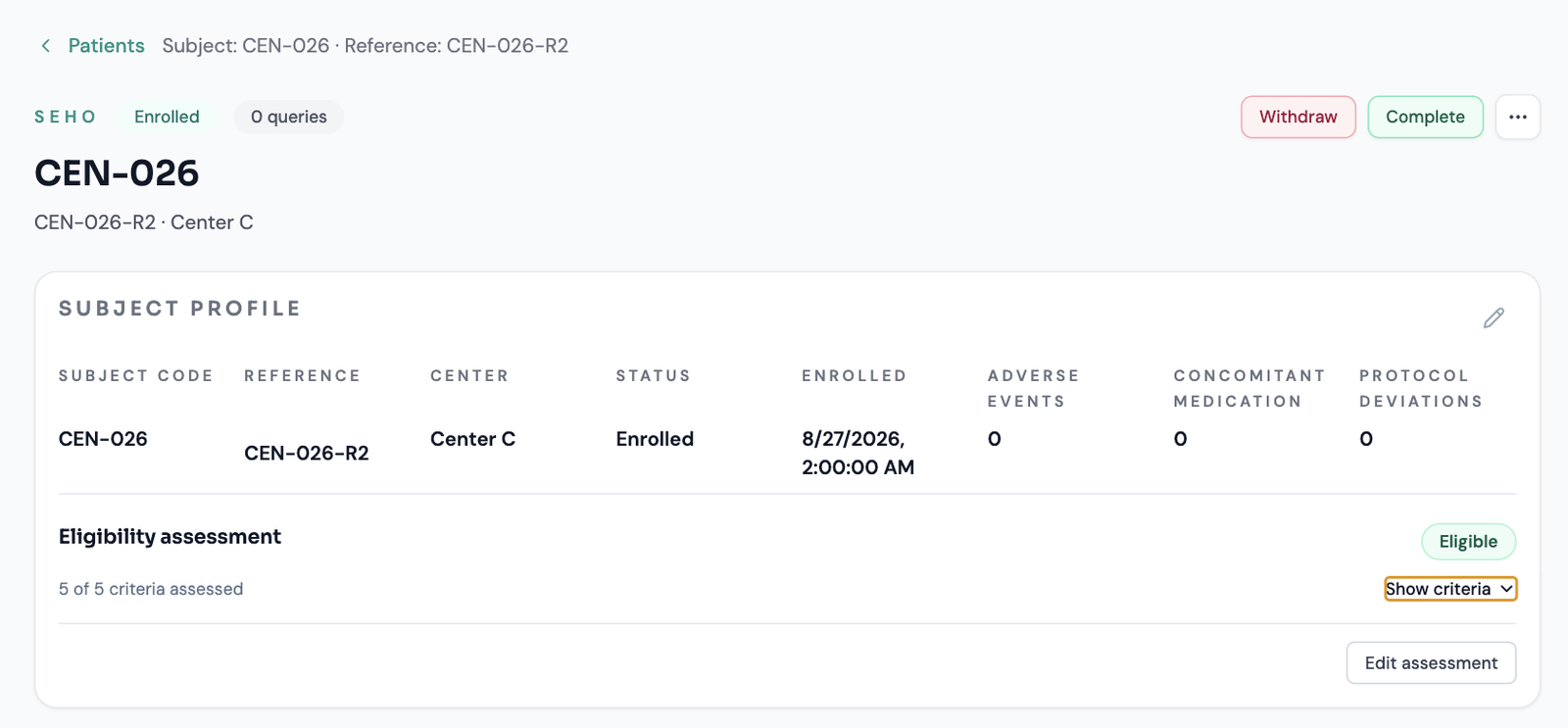
The patient detail area is where most of your daily execution happens. A subject profile summary at the top gives you context — subject code, external reference, center, status, enrolment timing, key counters — before you touch the data.
Registering a visit
- Select the visit.
- Register the visit date. This is required for the visit to count as complete.
- Continue into the visit's forms to enter data.
You can always record when a visit happened, even in studies that restrict data entry order — so out-of-window visits are still detected and flagged.
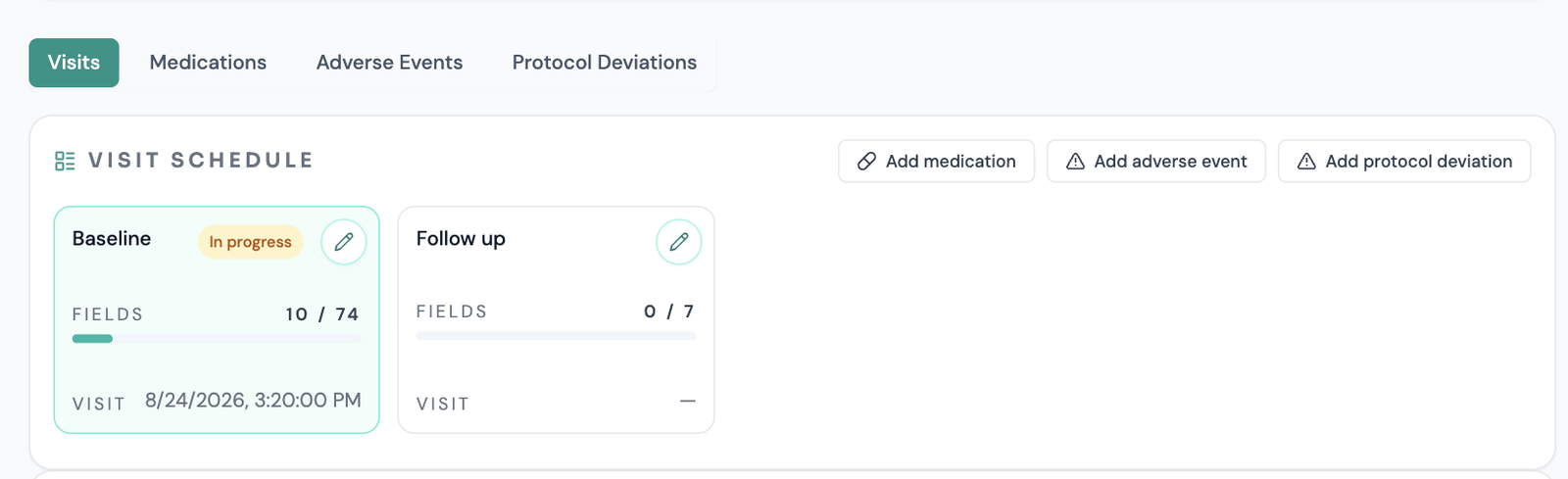
The Visit Schedule shows each visit as a card with its status, a fields filled / total counter and progress bar, and the recorded visit date. Opening a visit lists its forms, each with its own status and field counter, so you can see at a glance where the remaining work sits.
Entering and completing form data
- Saving normally marks a form complete only if every field has a value. Otherwise it stays in progress.
- “Mark as completed” can force completion with empty values, but Arion warns you first and proceeds only after you confirm.
- Out-of-range or invalid values show a non-blocking warning — you can still save. Depending on study configuration, these may later become queries.
Completion rules
Can you enter visits out of order?
This now depends on your study's setting, and it is the biggest day-to-day change. Arion previously required every earlier visit to be complete before you could enter a later one. There are now three possible behaviours:
Visit order modes
- Any order — no restriction. Enter visits as the data arrives. This is the default for newly created studies.
- Warn if out of order — the save succeeds, but the out-of-order entry is flagged. Your study may also raise a query against the earlier incomplete visit, since that is where the outstanding work is.
- Require in order — the original behaviour. Saving form data in a later visit is refused until earlier scheduled visits are complete. The message names the specific visit blocking you.
Unscheduled visits are never gated — an unscheduled visit is off-schedule by definition — and an incomplete screening form never locks the post-enrolment casebook.
10 Replying to queries
Queries are how data questions are raised and resolved. They attach to a meaningful target — the patient, a visit, a form, or a specific field. Your main job is to answer them.
The lifecycle (where you fit in)
Query lifecycle
Arion distinguishes automatic candidates, active open items, answered items awaiting reviewer follow-up, and closed queries. Reviewers promote candidates, manage transitions, and close issues. You respond in context and mark active queries as answered. A reviewer comment can move an answered item back into active follow-up, so a query can go back and forth until genuinely resolved.
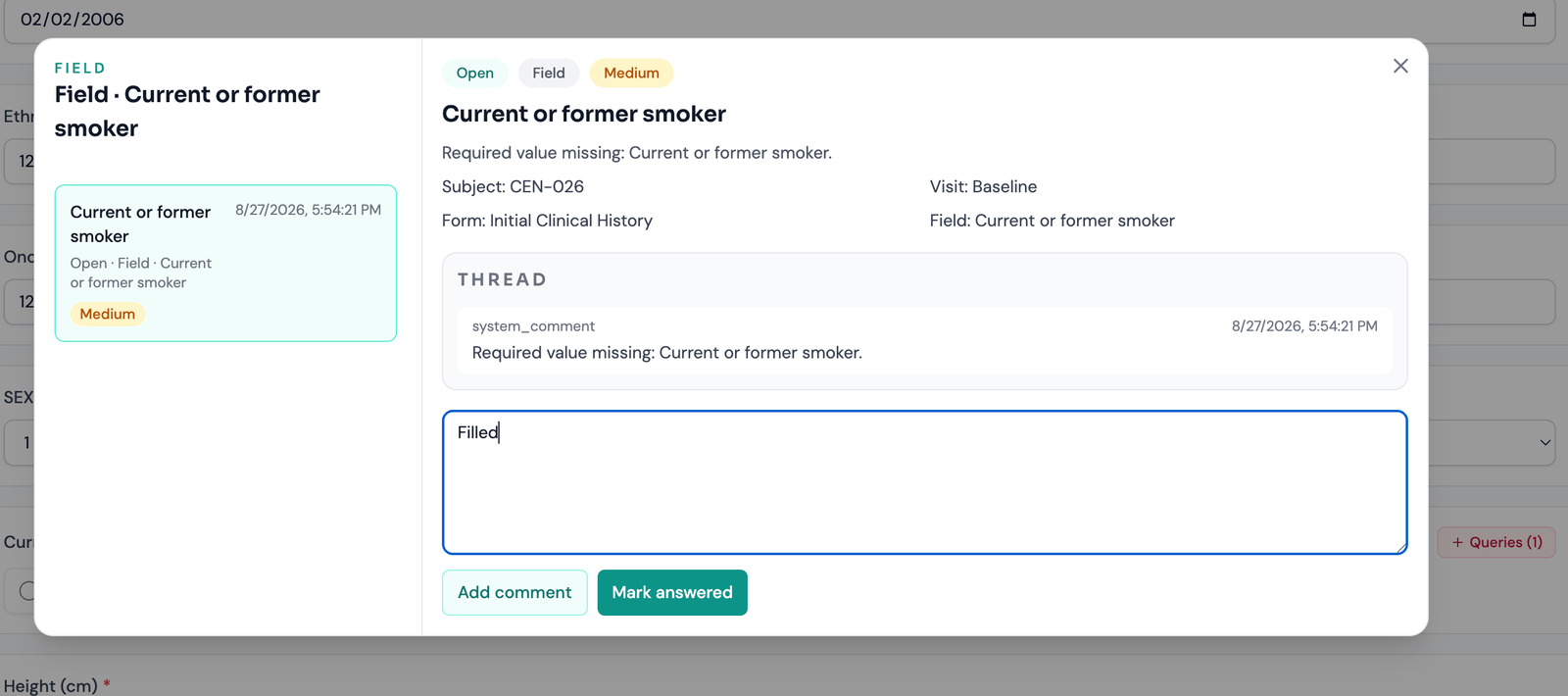
How to answer
- Open the query, from the field/form in the casebook or from the Queries workspace.
- Read the question and look at the data it refers to.
- Correct the value if needed, or prepare an explanation if it is right.
- Type your reply into Add a message.
- Use Add comment to reply without changing the status, or Mark answered to send it back to the reviewer.
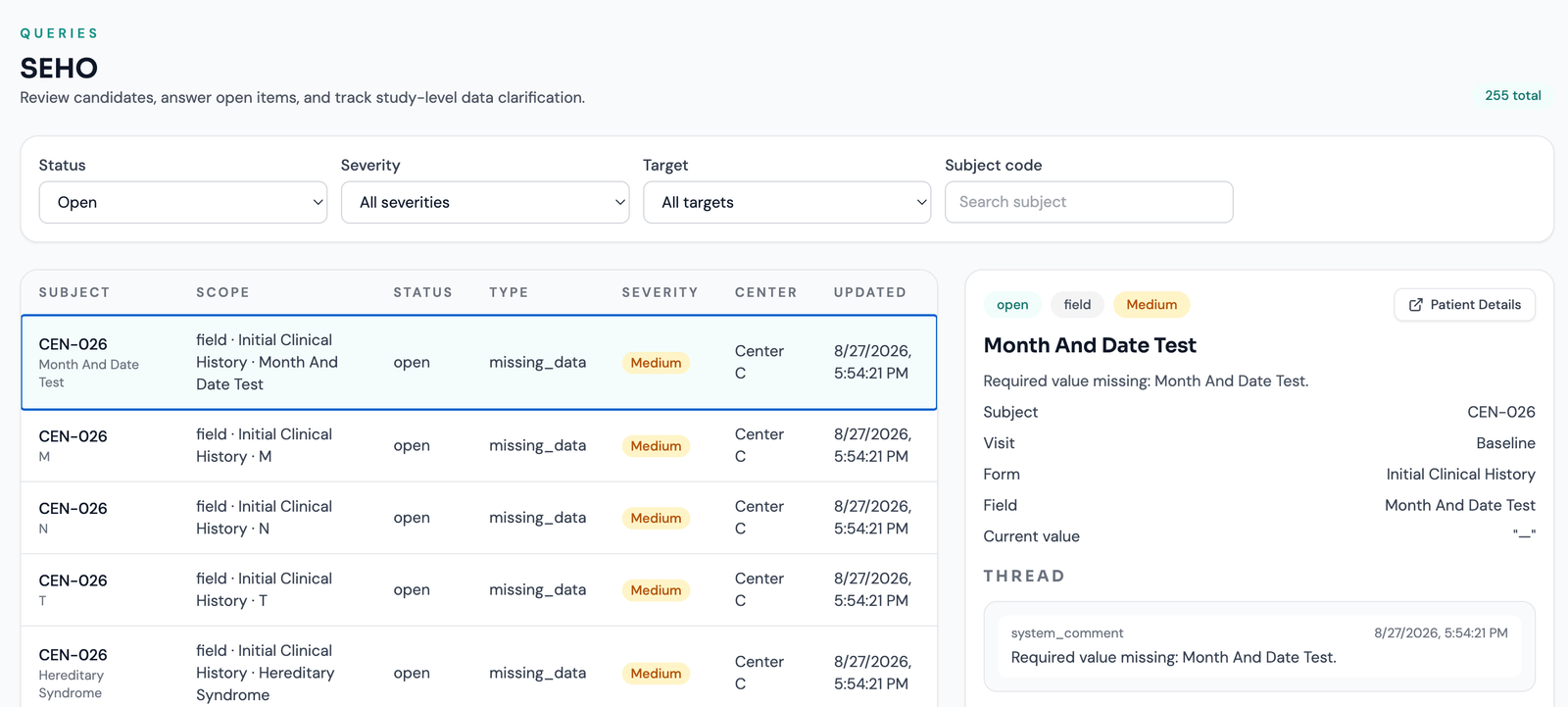
The detail panel names the exact target — subject, visit, form, field — and shows the current value, so you can judge the question without hunting for the data. A Patient Details link jumps straight to the record.
Answering from the casebook is usually fastest; the study-wide Queries workspace is better when clearing several at once. It filters by Status, Severity, Target, and subject code, and each row names the exact scope of the question — for example field · Third Line Treatment & Response · Third-line progression date — so you can see what is being asked before opening it.
11 Concomitant medications and safety
Medications are managed from within the patient workflow, so the record stays in context with visits, forms, and review activity.
- Open the patient and go to the concomitant medication section.
- Add the medication entry with its details.
- Save.
Studies can define prohibited medications. If a rule is breached, Arion can automatically raise a protocol deviation, so the event is visible in the review model rather than hidden in data entry.
Concomitant medications remain available after a patient is withdrawn or completed.
12 Protocol deviations
Deviations record departures from the protocol as structured review items. Site roles both report and respond to them; reviewers supervise the lifecycle and close items.
Where they come from
Deviation origins
- Manual — you record one explicitly.
- Automatic — including visit-window deviations when a visit is registered outside its window, prohibited-medication deviations, and eligibility-waiver deviations when a reviewer grants a waiver.
Creating one manually
- From the patient or the Deviations workspace, start a new deviation.
- Fill in title and description, severity, category, and origin.
- Save.
From the workspace you can filter by status, category, severity, and origin, open a deviation, and comment on its thread. Reviewers maintain CAPA plans and completion.
13 Source Data Verification (what site users see)
SDV confirms recorded data against source information. It is primarily a reviewer/monitor workflow — you mainly see SDV signals in the patient list and casebook rather than performing verification.
- An eligibility assessment becomes an SDV target once an eligibility decision is recorded, so your screening work may be verified.
- If a discrepancy generates a linked query, you answer it like any other. When the SDV item is later verified, Arion can close the linked query automatically.
14 PI signature (Site PI only)
The PI signature is an explicit sign-off action, separate from data entry and from locks. Site Coordinators perform the same patient and visit work but cannot sign as PI.
Locks and signatures are separate workflows: locks gate further edits and are generally handled by oversight roles; the signature is the investigator's sign-off.
A locked patient cannot be reopened after withdrawal or completion until it is unlocked.
15 ECOA: remote forms for participants
ECOA lets selected data be collected remotely by participants while staying inside the study model. Site roles typically issue the invitation.
- Issue an ECOA invitation for the participant and the specific remote form.
- The participant accesses it through a dedicated identifier and an access-code verification step — a controlled flow, not an open public form.
- They complete it in a simplified, mobile-friendly layout.
- The data flows back into the study record.
16 Notifications, history, and traceability
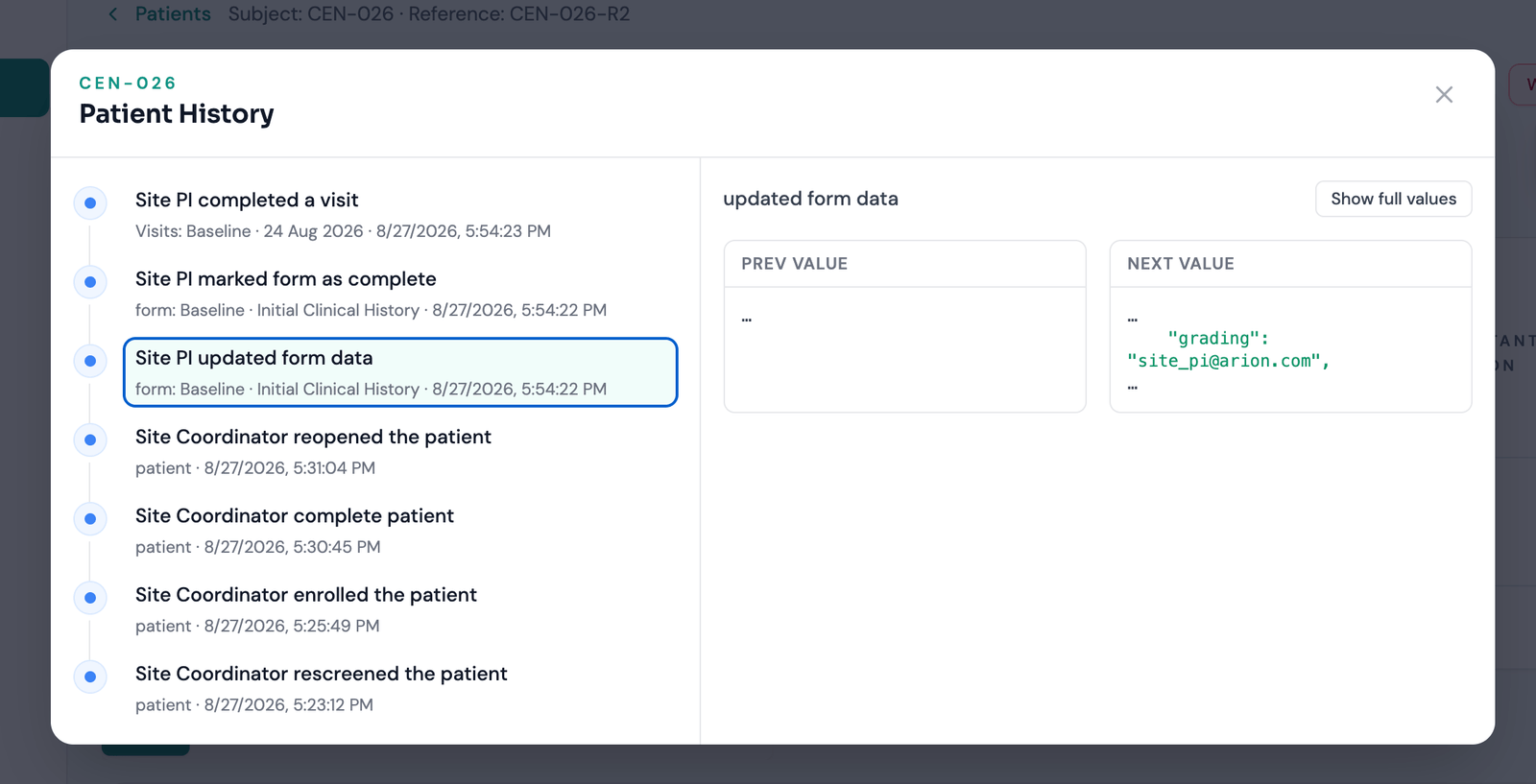
Arion keeps a structured record of study and patient activity. Notifications surface relevant recent actions directly in the interface. History is available at study and patient level; from within a patient you can review what changed, who changed it, and when — without leaving the casebook.
Every lifecycle transition — eligibility decisions, enrolment, screen failure, waiver, withdrawal, completion, reopening — is audited with actor, timestamp, and before/after values.
17 A typical day at the site
- Start at the dashboard to see where attention is needed.
- Register new patients; in a screening study they enter Screening.
- Enter screening data and work the eligibility panel; enrol those who pass, record screen failures for those who do not, and rescreen where appropriate.
- Open the patient list, scan completion ratios, days in screening, and review signals.
- In the casebook, register visit dates and complete forms — in whatever order your study permits.
- Record concomitant medications, mindful that prohibited ones raise a deviation.
- Answer queries and mark them answered; report or respond to deviations.
- Record withdrawals and completions as subjects end participation, and keep safety follow-up going where needed.
- (Site PI) provide PI signatures where required.
- Use notifications and history to stay on top of changes.
18 Quick reference
Patient statuses
Screening → Enrolled (explicit action) or Screen failure (reason + clinical date) → terminal Withdrawn / Completed, which can be reopened if unlocked. Treatment discontinuation is a badge, not a status — the patient stays Enrolled.
Eligibility rule
All required inclusion criteria must be Yes and no exclusion criterion may apply. Not assessed leaves the assessment pending — it never auto-fails. Answers autosave. Waivers are reviewer-only.
Visit order
Depends on your study: Any order / Warn if out of order / Require in order. Unscheduled visits are never gated. You can always record the visit date.
Form & visit completion
A form completes automatically on save only if every field has a value; otherwise it stays in progress until filled or forced via “Mark as completed” (which warns first). A visit completes with a visit date and all forms complete.
Query reply
Open → review the data → correct or explain → respond → mark as answered. Reviewers close or reopen.
After withdrawal or completion
Still allowed: adverse events, concomitant medications, unscheduled safety follow-up. Blocked: scheduled visits and normal form editing. Open queries stay open.
Role differences
Both: patients, visits, forms, medications, queries, deviations, lifecycle actions. Site PI only: sign as PI, and enrolment confirmation where the study requires PI. Neither: eligibility waivers (reviewer roles).
Check in order: correct organization → correct center → your role includes the action → and whether your study's configuration enables it (screening, rescreening, visit order). Then contact your study manager.