Study Builder Guide
A practical, step-by-step guide to configuring a study in Arion — translating a clinical protocol into a working, operational data-collection model.
This guide is written for the Study Builder role (study_builder) — the person who translates a clinical protocol into a working study in Arion. It walks through everything you configure in the Study Design area, in roughly the order you'll build it, and explains the choices that shape how sites later capture and review data. Study Managers and admins who also configure studies will find it equally useful.
01 What the Study Builder does (and why it matters)
Study setup and design is the foundation for everything else in Arion. This is where you define how the study will operate in practice: what information is captured, when it's collected, how it's validated, and what review controls apply.
The goal of the design area is to give you a structured way to translate a protocol into an operational data-collection model. Rather than building forms in isolation, Arion links your study definition directly to the later patient, visit, review, and analytics workflows.
Design time binds to capture time
The decisions you make here become the operational rules that drive patient registration, casebook data entry, completion tracking, SDV review, query generation, protocol-deviation monitoring, and downstream analytics. Getting the design right is what lets the rest of the platform run consistently.
02 Your role and what you can do
The Study Builder is the most focused study-configuration role — its job is study design. You work in the Study Builder to define and maintain the study structure, but it is not intended for operational patient workflows.
| Role | Relationship to study design |
|---|---|
study_builder | You. Design the study. |
| Study manager | Can also configure studies while supervising operations. |
| Platform / tenant admin | Broad configuration authority. |
| Data manager, statistician | May have visibility into the study structure without being primary configuration owners. |
| Site PI, site coordinator | Consumers of the workflow you design, not designers of it. |
03 The big picture: what you'll configure
The Study Design area lets you configure the operational structure of a study before any patient activity begins.
The builder at a glance
Across the builder you'll define:
- core study metadata (identity and planning)
- study timelines and planning information
- visit and event structure
- pages and forms
- field definitions and validation rules
- eligibility (inclusion/exclusion) criteria
- review rules such as SDV settings
- study-specific safety controls such as prohibited medications
Together these create a controlled study blueprint that produces consistent data capture across users, patients, and centers.
04 Study-level configuration (identity & planning)
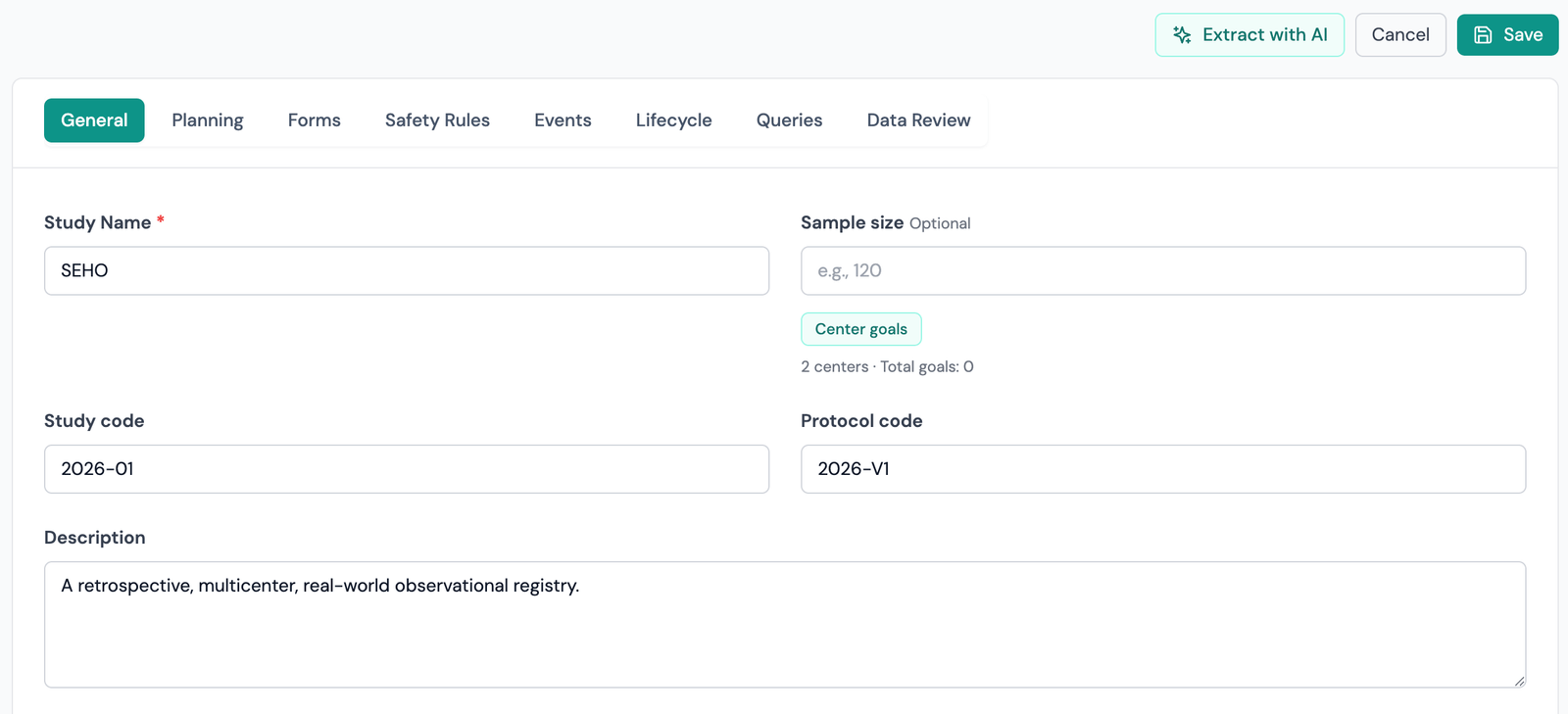
Start at the study level, where you define the main identifying and planning information:
- study name
- short study code
- protocol code
- lifecycle status
- sample size
- planning dates and timeline expectations
These settings establish the identity and operational context of the study, and they feed downstream visibility in dashboards, operational summaries, and study administration. Planning fields (sample size, dates) are especially valuable when the platform is used for ongoing monitoring, because they let teams compare actual activity against intended timelines and recruitment expectations.
05 Pages, forms, and fields
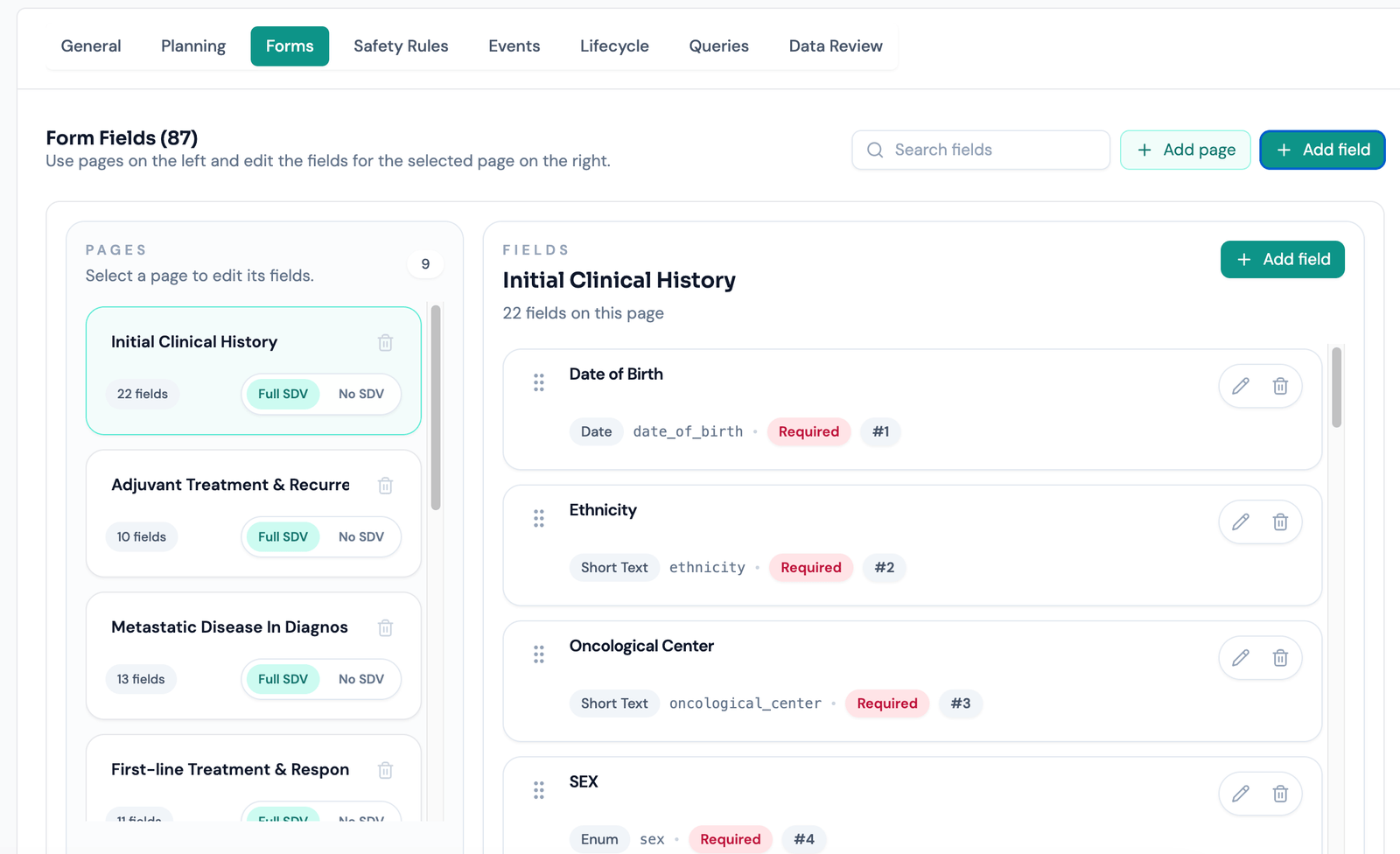
Arion structures study forms around pages and fields, with visit-specific ordering controlled from the event definition (see section 8). Building with pages instead of one long form makes the data-collection experience easier to navigate and closer to how visits actually work.
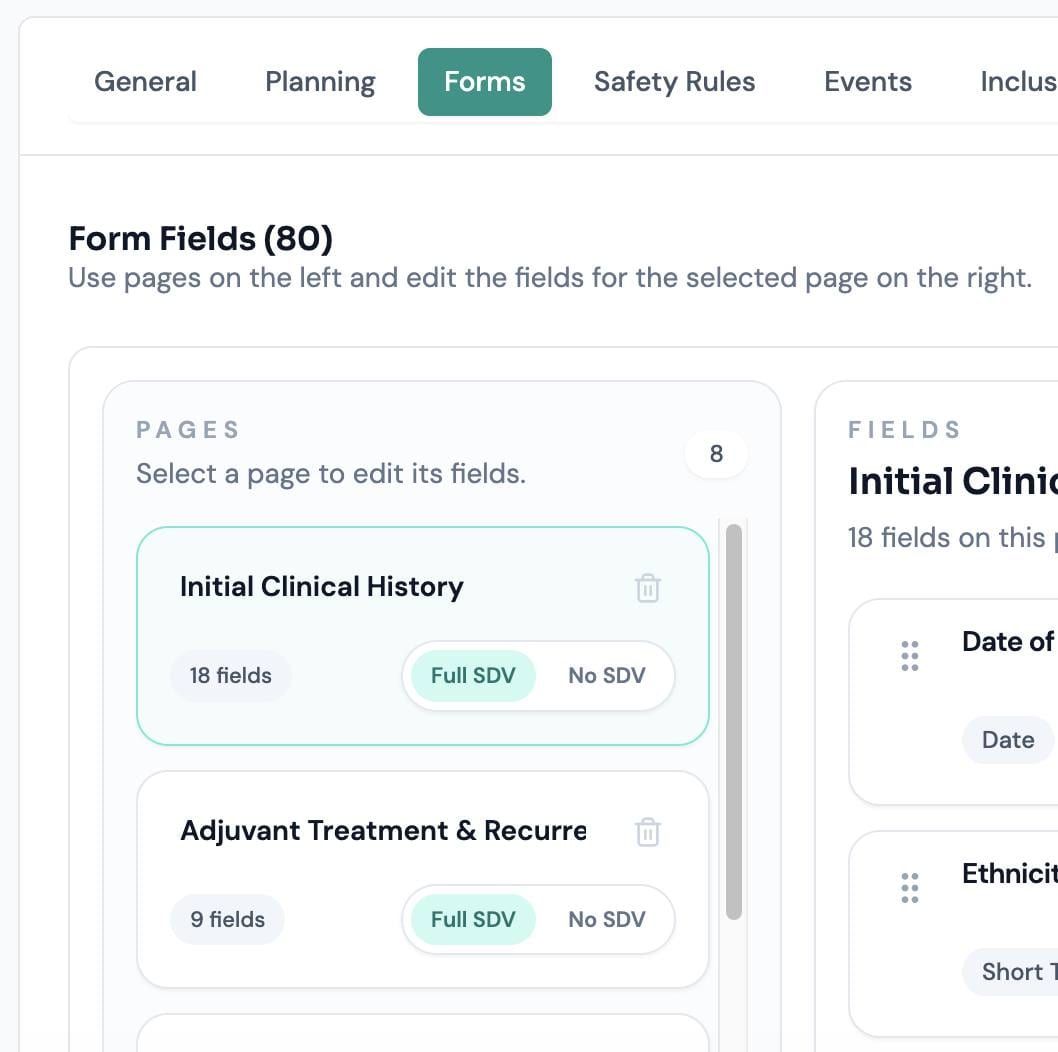
Each study can include multiple pages, and each page can contain multiple fields. You manage all of this from the Forms tab, where you create, rename, delete, and configure pages and their fields.
Field types you can define
- text and long-text fields
- numeric fields
- date and time fields
- enum and selectable-value fields
- checkbox-style fields
- repeatable sections for grouped entries
- derived fields calculated from other data points
Pages are not globally sortable in the Forms tab. When you need to control the order in which forms/pages appear for a given visit, you set that order inside the Events tab for the specific event. This lets the same page sit in different positions depending on the visit.
06 Field requirements and value validation (the non-blocking model)
This is one of the most important concepts to understand, because Arion deliberately keeps data entry non-blocking. Nothing you configure at the field level will stop a site from saving.
The non-blocking model
Required fields
You can mark a field as required. In the current version, leaving a required field empty does not block saving the form — the site can save partial data and come back later. Instead, required fields do two things: they drive form completion, and they can (optionally) drive automatic queries.
Range and format rules (soft validation)
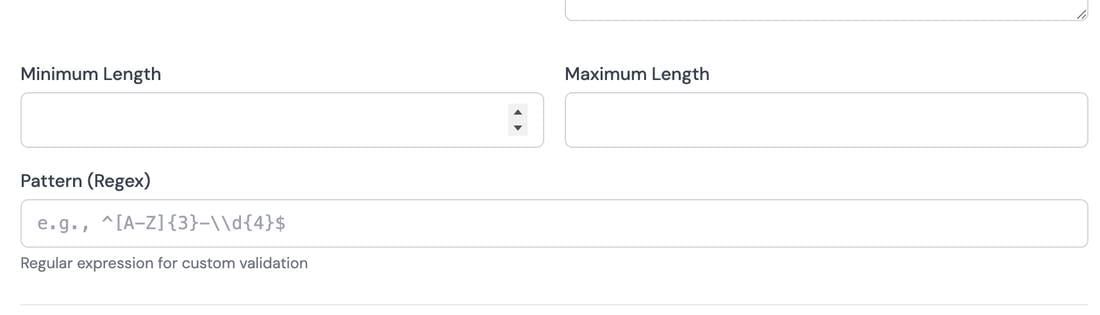
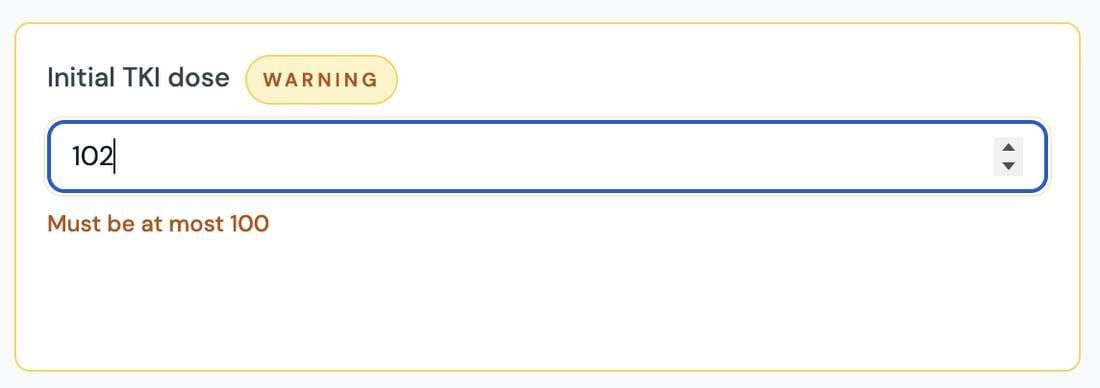
Fields can carry range and format rules — minimum/maximum values, minimum/maximum length, and pattern checks. These are treated as soft validation: when an entered value falls outside the configured range or format, Arion shows a non-blocking warning indicator on the field, but the user can still save.
There is no longer any per-field “strict” flag that hard-blocks saving — that behavior has been removed in favor of the warning-plus-query model.
Form completion
A form is considered complete when all of its required fields are filled (or when it's explicitly marked complete). Reaching completion is the moment any configured automatic queries for that form are generated. The net effect: clinical data entry stays fluid — sites are never stopped mid-entry — while quality issues are surfaced visually and, where you configure it, captured formally as queries.
07 Query generation settings
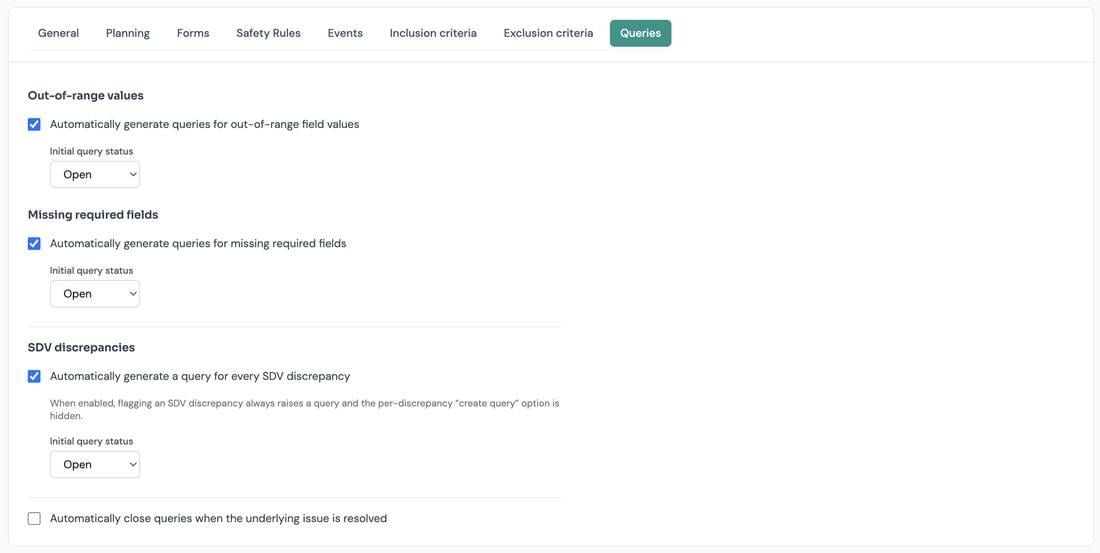
The Study Design area includes a dedicated Queries configuration section where you decide whether Arion should automatically raise queries for common data situations, and what initial status those queries get.
Automatic query generation
The available settings are:
- Automatically generate queries for out-of-range or invalid values. When on, values outside a field's configured range or format produce a query once the form reaches completion. You choose the initial status: candidate (held for a reviewer to promote before the site sees it) or open (immediately visible to the site).
- Automatically generate queries for empty required fields. When on, required fields still empty at form completion produce a query, again with a configurable candidate or open initial status.
- Automatically generate a query for every SDV discrepancy. When on, flagging any SDV discrepancy always raises a linked query with the configured status — even if the person flagging it can't otherwise create queries. Because the outcome is fixed, the per-discrepancy “also create a query” checkbox is hidden in the SDV dialog. When off, that optional checkbox remains available.
- Automatically close auto-generated queries when the underlying issue is resolved. Optional and off by default (a reviewer closes them manually). When on, an auto-generated query closes automatically once the value is corrected or the required field is completed.
08 Visits and events (ordering, and the visit workflow setting)
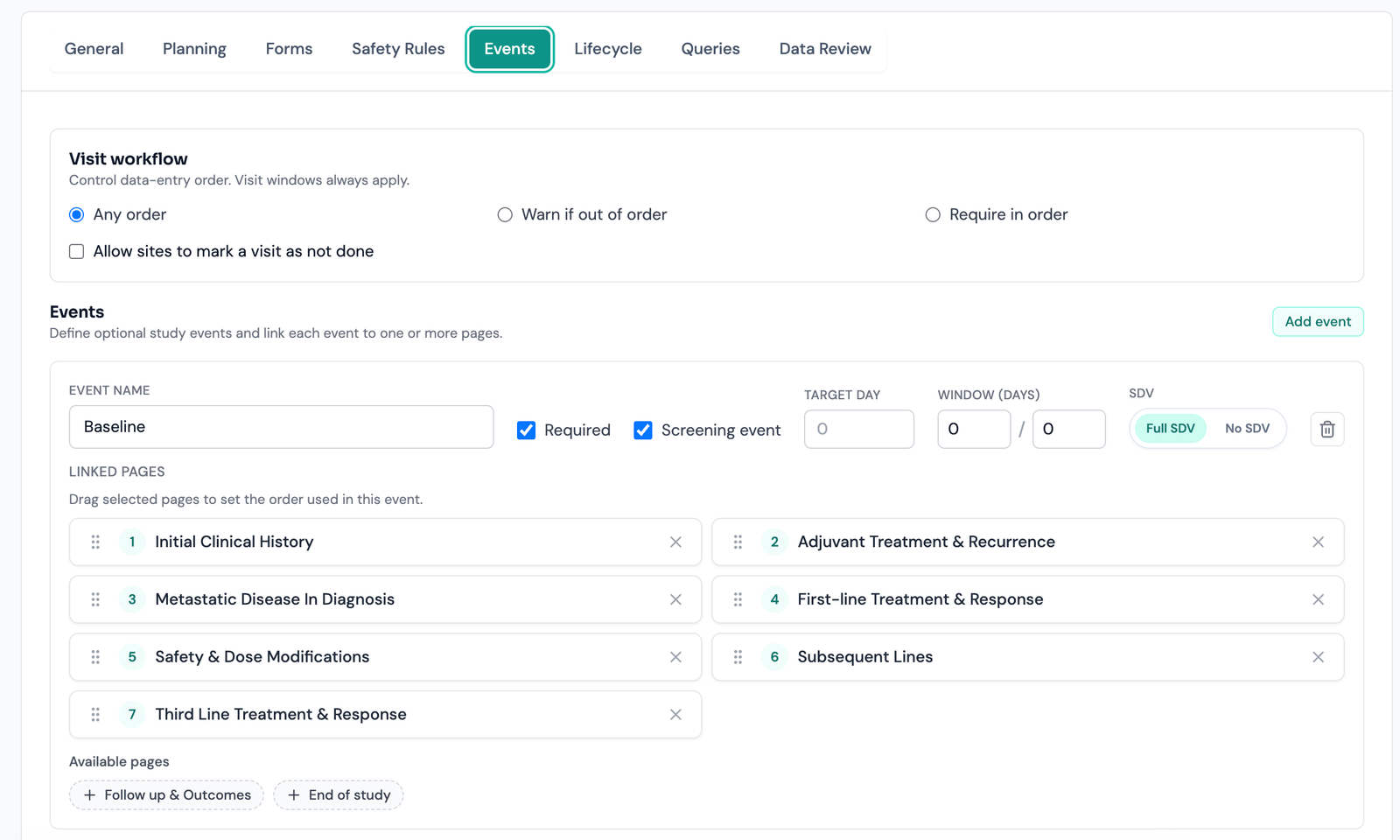
Study data in Arion is visit-oriented. In the Events tab you define study events that represent planned visits or other structured collection points in the timeline.
Each event is associated with one or more study pages, so the design area isn't only defining fields — it's defining when and where those fields appear in the operational workflow. This is also where you control visit-specific form order: you can sort the linked forms/pages within the event itself, so a page can appear in a different position depending on the visit, without any global reorder from the Forms tab.
Configuring events well supports scheduled visit planning, alignment between the protocol timeline and data capture, patient-level completion tracking by visit, and clearer operational reporting on what has and hasn't been collected. By linking events to pages in advance, you ensure later patient casebooks follow the intended structure instead of relying on ad hoc form access.
Screening events
If your study uses a screening period (section 9), you also mark which events are screening events here. Only events flagged as screening events are open for normal casebook data entry while a subject is still in screening; the remaining scheduled events materialise once the subject is enrolled.
Visit workflow: can sites enter visits out of order?
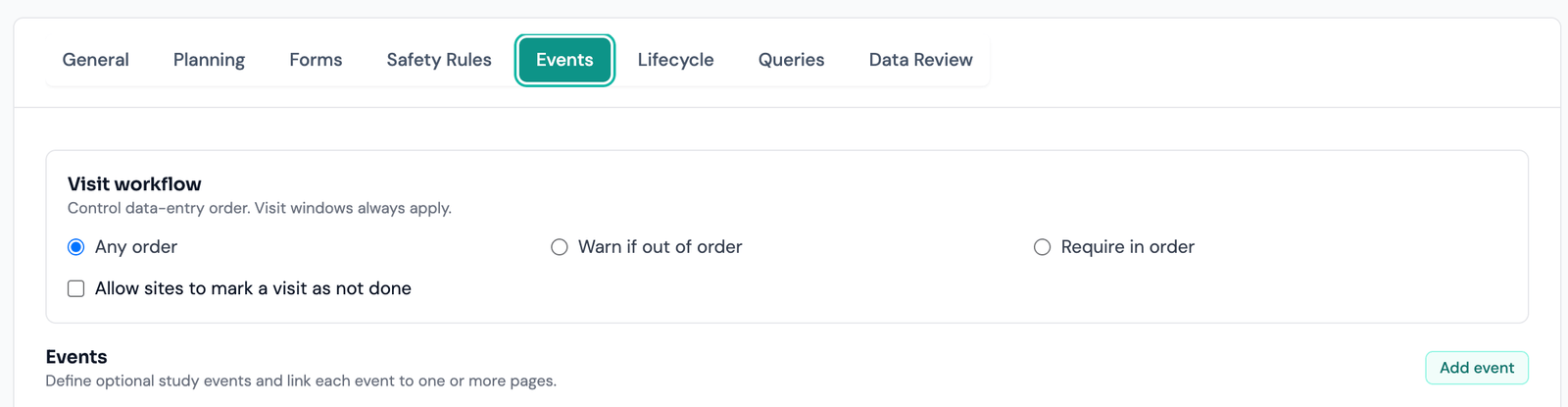
At the top of the Events tab there is a Visit workflow card that controls whether data entry is gated on earlier visits being complete. Arion previously enforced a single hard rule — every form in every prior visit had to be complete before any data could be entered in a later visit. That is now a study-design choice with three modes:
Visit order modes
- Any order (open) — no gate. Sites enter visits in whatever order the data arrives. This is the default for new studies and matches how most protocols actually run (labs come back late, a monitor finds a missing page from visit 1 while the subject is at visit 5).
- Warn if out of order (warn) — the save succeeds, but the out-of-order entry is flagged. You can additionally tick Also raise a query on the incomplete earlier visit, which puts the query where the outstanding work actually is, rather than on the visit being entered.
- Require in order (strict) — the original blocking behaviour. Saving form data in a later visit is refused until earlier scheduled visits are complete, and the message names the specific blocking visit.
09 The Lifecycle tab: screening and eligibility
This area has changed significantly. Eligibility criteria are no longer configured on separate Inclusion criteria and Exclusion criteria tabs. Those tabs have been replaced by a single Lifecycle tab that holds one shared inclusion/exclusion criterion editor together with the screening period, enrolment, screen failure, rescreening, and waivers.
The lifecycle you are configuring
Turning on a screening period
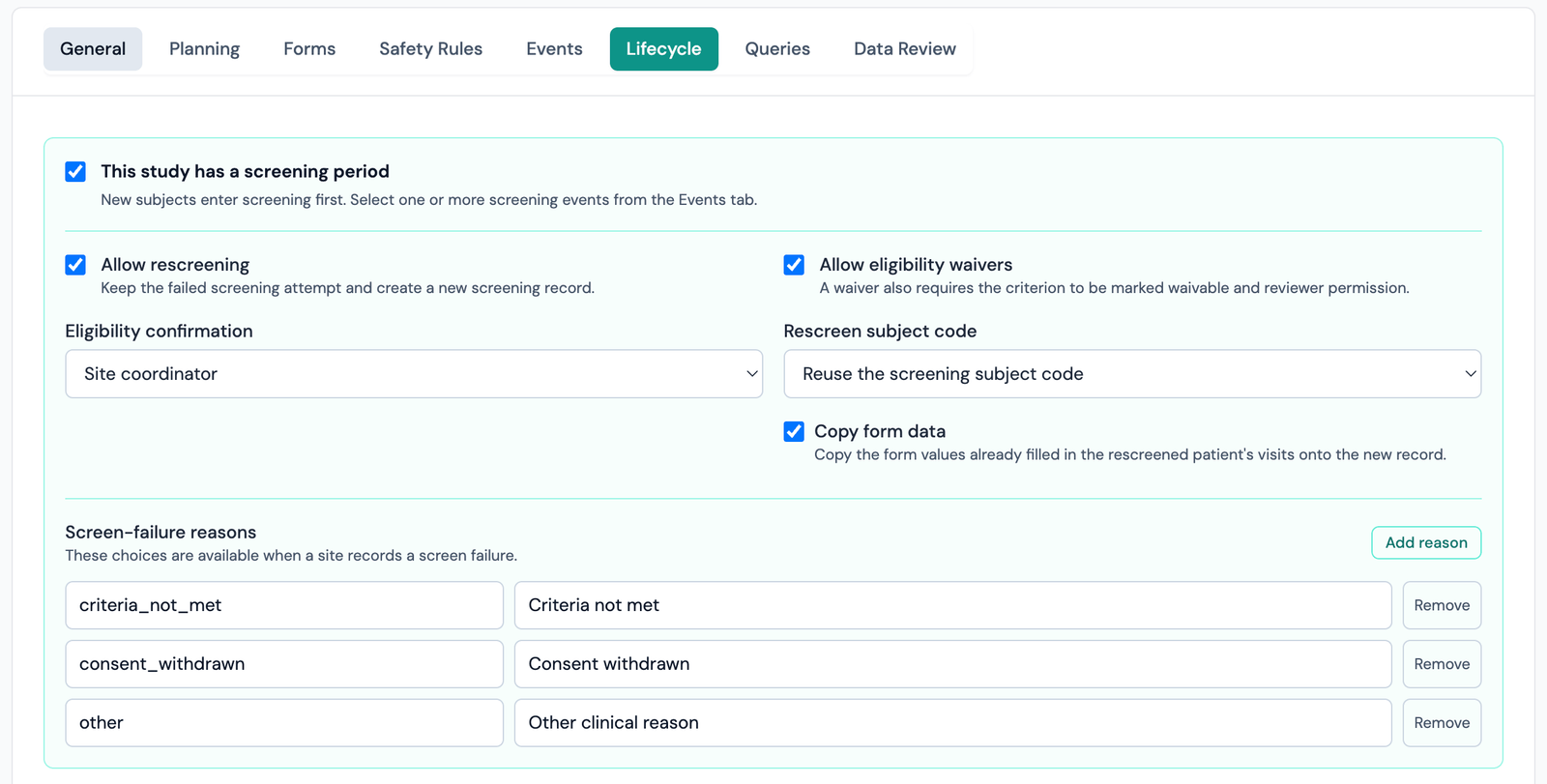
Tick “This study has a screening period”. New subjects then register into a screening status instead of going straight to enrolled, and only the events you flagged as screening events in the Events tab are open for data entry until the subject is enrolled.
Screening options
- Allow rescreening — a failed screening attempt is kept and a new linked screening record is created rather than overwriting the original assessment. Under Rescreen subject code you choose whether the rescreen creates a new subject code or reuses the screening one, and Copy form data controls whether values already entered are carried onto the new record. Subject codes are unique within a study and appear in patient URLs, so agree with your team which option to standardise on before go-live.
- Allow eligibility waivers — permits a reviewer to waive a failing criterion. A waiver also requires the individual criterion to be marked waivable and the user to hold reviewer permission; site roles cannot grant one. A granted waiver automatically creates a linked
auto_eligibility_waiverprotocol deviation. - Eligibility confirmation — choose whether enrolment must be confirmed by the Principal investigator or a Site coordinator. Selecting PI requires that PI's password confirmation at the moment of enrolment.
- Screen-failure reasons — the code/label list sites pick from when recording a screen failure. Define these up front; a screen failure always stores a reason and a clinical date.
Eligibility criteria and evaluation modes
Criteria are defined once in the shared editor, each with a code (e.g. I1, E1), the criterion text, a waivable flag, and — this is new — an evaluation mode.
Criteria: modes and answer states
- Manual — the site records the answer directly. This is the classic behaviour.
- Field — the criterion is bound to a screening field and evaluated from the entered data using an operator (equals, not equal, greater than, at least, less than, at most) and a comparison value. For example: age · At least · 18.
- Formula — an expression evaluated from screening data that must resolve to a boolean, e.g.
age >= 18.
Field and formula criteria retain the value and evidence used for the evaluation, so a reviewer can trace a verdict back to the source field. Field pickers only offer fields that exist in screening events, and the study will not save if a criterion points at a field outside screening.
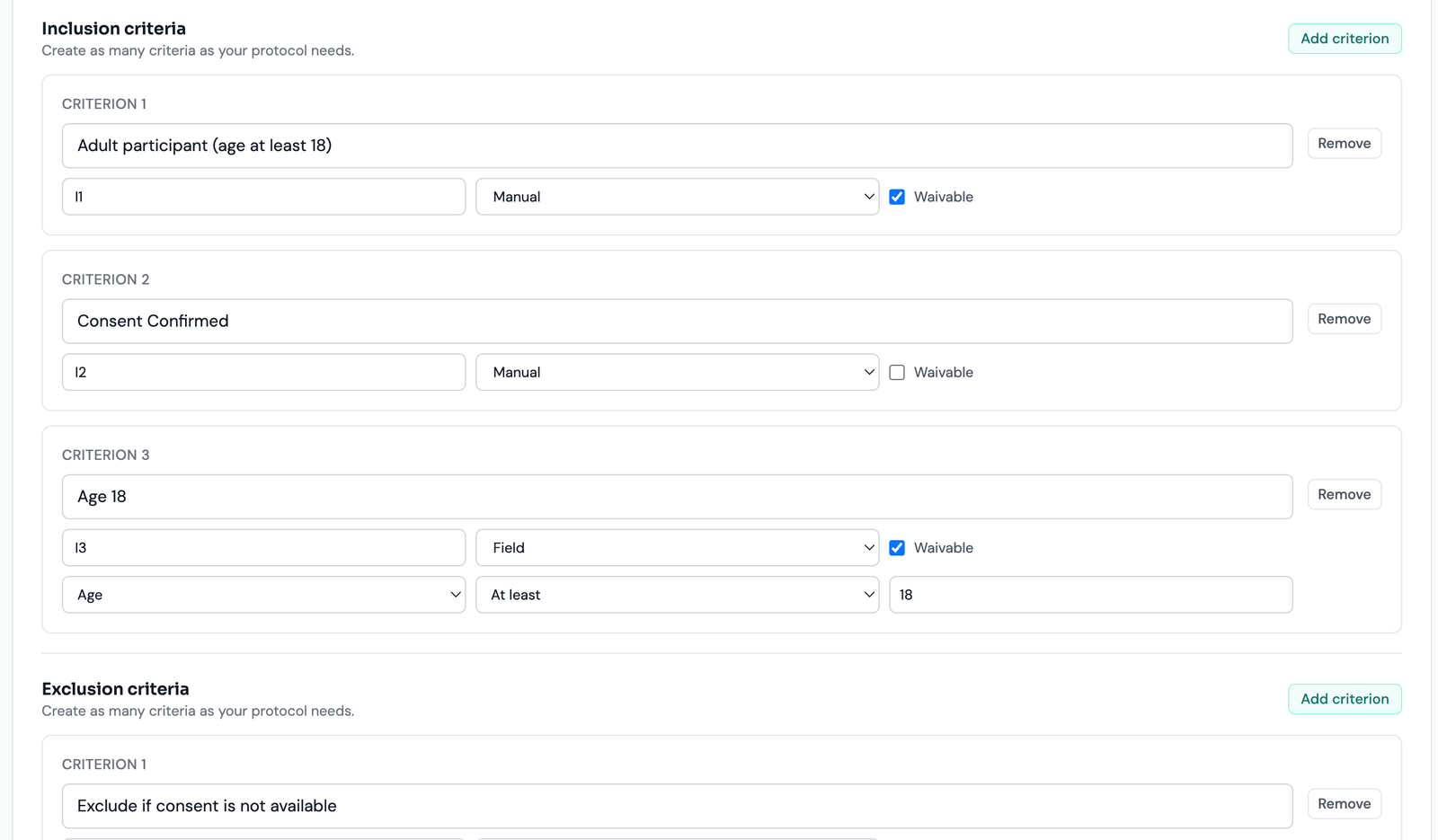
Three answer states — and why nothing auto-fails
Criteria now use three states: yes, no, and not_assessed. An unassessed criterion leaves the assessment pending — it never produces a screen failure on its own. A missing source value on a computed criterion likewise resolves to Not assessed, not to an automatic failure. The assessment can be saved while incomplete, and answers autosave.
Incomplete screening data results in a subject who simply cannot be enrolled yet, rather than one who is wrongly failed. A screen failure is always an explicit, attributable act by the site.
10 SDV and review configuration
Source Data Verification (SDV) settings are part of study design, so review expectations are defined up front rather than improvised once data arrives. Configure them from Data review → Source Data Verification. The first decision is the study-wide strategy; when it is set to Use configured hierarchy, each field value ultimately resolves to either Full SDV (must be source-verified by a reviewer) or No SDV (no verification required).
First choose the study-wide strategy
| Choice | Behavior |
|---|---|
| Use configured hierarchy | The default. Uses the field, page, and visit settings below, plus the separate Eligibility SDV choice. |
| Full SDV | Confirmed override that requires SDV for every configured field, form, and visit, and for eligibility decisions. The hierarchy remains saved beneath the override. |
| No SDV | Confirmed override that removes SDV requirements across the study, including eligibility. The hierarchy remains saved so it can be restored by selecting Use configured hierarchy. |
Use Full SDV or No SDV for a deliberate study-wide policy. Use the hierarchy when the protocol needs targeted coverage. The builder asks for confirmation before either study-wide override is applied.
Then configure the hierarchy when needed
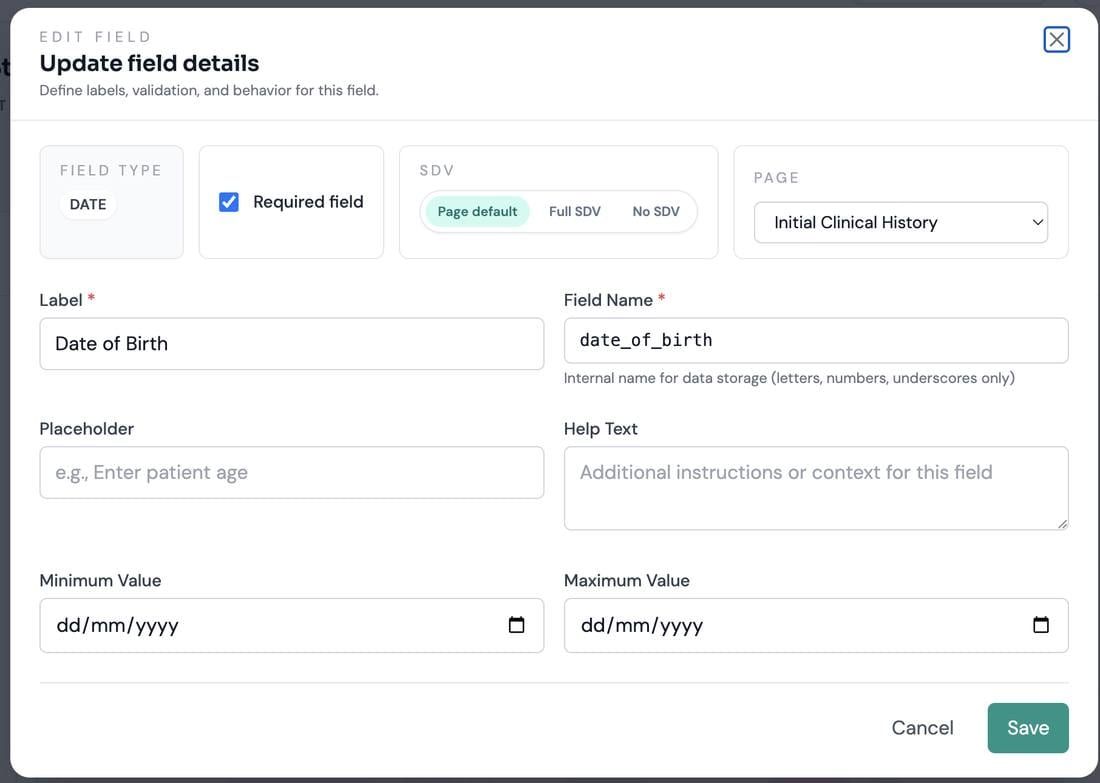
- Field level — set on an individual field in the field editor (Forms tab). A field can also be left to inherit, meaning it takes its behavior from the levels above it.
- Page (form) level — set on each page/form card (Forms tab).
- Visit (event) level — set on each event using the SDV control on the event card (Events tab).
How the hierarchy resolves (important)
Arion treats SDV as an opt-in to verification. Everything is No SDV by default, and each level can add a Full SDV requirement on top of the others.
SDV resolves additively
- Marking a field as Full SDV means it must be verified wherever it appears, in every visit.
- Marking a page as Full SDV applies Full SDV to every field on that page, across all visits.
- Marking a visit as Full SDV applies Full SDV to every field on the pages linked to that visit — but only for that visit.
Because the requirement is additive, not a strict override, a field “needs verification” if Full SDV is set at the field, at its page, or at the visit where it appears. The visit level is the most targeted control: it can require verification for one visit without forcing that field to be verified in every other visit. Conversely, leaving a field on inherit or No SDV does not cancel a Full SDV coming from its page or visit — to reduce verification you must remove the Full SDV at whichever level introduced it.
When you save the design, Arion resolves these three levels into a concrete verification plan for each field-and-visit combination. That resolved plan drives the SDV workspace, where reviewers see exactly which values require source verification per visit and can mark them verified or flag discrepancies. The payoff: SDV expectations are consistent and predictable, defined as part of the protocol structure rather than decided case by case.
Eligibility SDV and PI signature
The same Source Data Verification section contains Eligibility SDV. It defaults to No SDV and is editable only while Use configured hierarchy is selected. Choose Full SDV to create a dedicated, pending SDV record for each decided eligibility assessment, including a screen-failure decision. A study-wide Full SDV includes eligibility automatically; study-wide No SDV excludes it.
Require SDV before PI signature belongs to the PI Signature section below. It is available only when at least one SDV scenario is active. If the study is changed to No SDV, Arion disables and clears that dependency so a signature cannot be gated on review that the study does not require.
11 Safety controls: prohibited medications
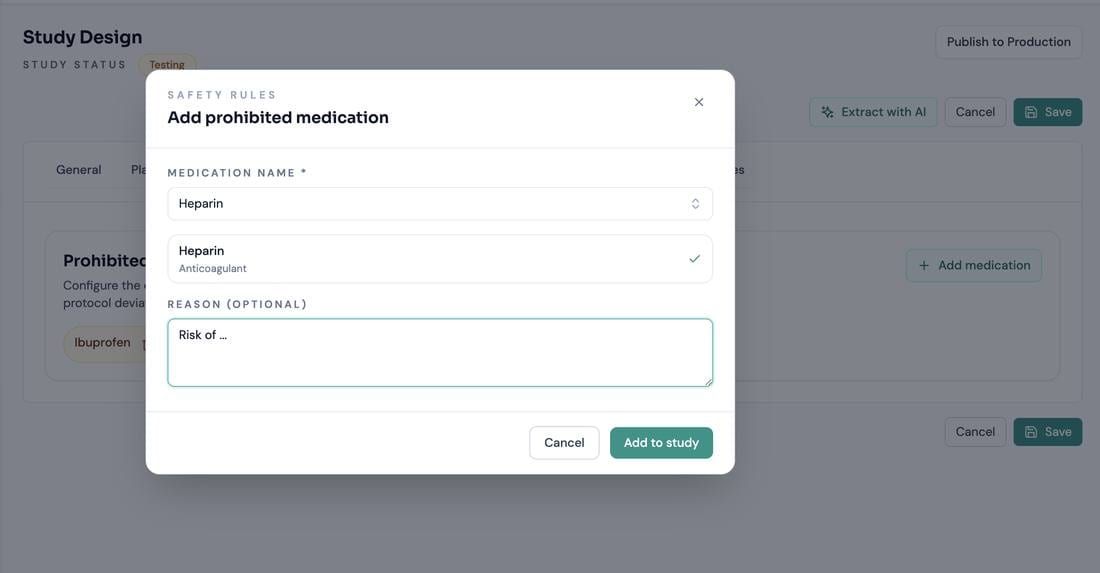
Arion lets you configure study-specific safety rules at design time. The main example is defining prohibited medications for the study.
This ensures safety rules aren't only documented but actually operationalized: once configured, they can later drive review and protocol-deviation workflows tied to real patient activity (for instance, recording a prohibited medication can automatically raise a protocol deviation). Placing these controls in study setup moves your team from passive configuration to enforceable operational rules.
12 The study lifecycle: draft to testing to production
Arion clearly separates a study that's still being validated from one that's live for real data collection. Three lifecycle stages matter most.
Study lifecycle
Draft
The study is still being configured. This is where you define the protocol structure, form layout, events, criteria, and review settings before any workflow validation. Patient workflows are not available in draft.
Testing
You can still edit the design in the Study Builder, and the study acts as a disposable validation environment. During testing, users can create test patients, register visits, enter values, generate queries, exercise SDV, and validate the end-to-end workflow before go-live.
Not a place to accumulate data you need to keep — publishing to production will clear it (section 14).
Production
The study becomes the live environment for real patient activity. Operational work continues (registration, casebook entry, queries, SDV, signatures, locks, deviations) per each user's permissions. The design is no longer edited in place: saving the Study Builder directly is refused, and the protocol changes only by publishing an amendment, which produces a new design version. See section 14.
Moving between stages
- Publish for Testing moves the study from draft into the operational validation phase.
- Publish to Production is the deliberate go-live step.
Remember these publish actions are performed by study_manager, tenant_admin, or platform_admin — not by the study_builder role directly.

13 Editing a study in testing (the impact modal)
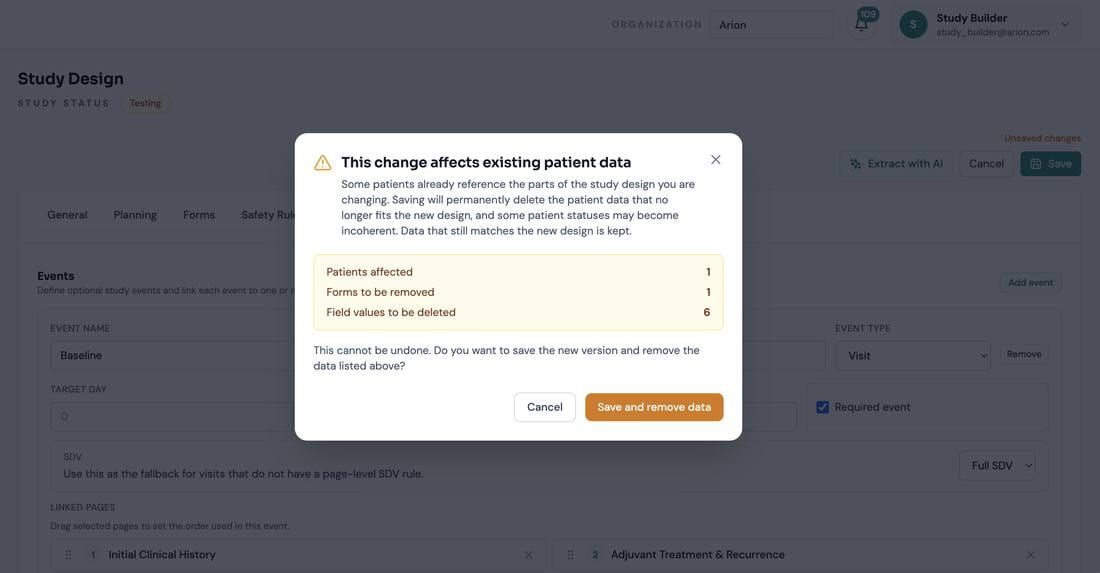
Because teams keep iterating during testing, Arion no longer blocks a design change just because registered test patients already have data for the visits, forms, or fields you're changing. This matters most when you change visit definitions, change which forms are linked to a visit, remove a form from an event, remove a field, or change field structure in a way that invalidates existing patient metadata and data.
The controlled decision point
When a change would remove or fundamentally alter structure that existing patients reference, the save does not silently discard anything and does not proceed immediately. Instead, the Study Builder shows a confirmation modal that:
- lists the affected patients and summarizes the impact,
- explains that some patient data will be removed and that patient/form/visit statuses may be recalculated,
- shows exactly what's affected: how many patients, visits, forms, and field values are involved, and how many SDV verifications, PI signatures, and locks would be removed.
This is your controlled decision point. You can cancel, go back to the builder, and adjust the design — or explicitly confirm the destructive change. Only after you confirm does Arion save the new design version, remove the orphaned data that no longer fits the updated structure, preserve data that still matches, and recompute affected form and visit statuses.
Adding a field, adding a visit, or linking an additional form without invalidating existing records saves immediately.
14 Publishing to production
Publishing to production is a deliberate go-live step with a destructive confirmation. When a study is published to production, Arion requires the user to type PUBLISH to confirm, then permanently clears all patient and operational data currently in that study — patients, visits, form instances, field values, queries, deviations, signatures, locks, SDV records, and patient-related audit-trail activity. The study design itself is preserved.
- Because production go-live wipes operational data, the testing study should be treated as disposable validation space, not a data store.
- Manually flipping a study in the database from production back to testing is not a supported workflow. If that's done and the study is later published to production again, the publish will treat the current patient and operational data as disposable and delete it.
After go-live: the design can still change
Going live is not the end of study design. Real protocols are amended constantly, and Arion supports that — a production study is no longer edited, it is amended. Opening the Study Builder on a production study offers a Start amendment action, which unlocks the builder against a private draft. Publishing that draft produces a new design version.
A field removed by an amendment is retired, not deleted: values already collected for it are preserved, shown read-only on the forms that collected them, and can be brought back by restoring the field in a later amendment. Publishing is also prospective — it applies to new subjects and visits that have not started, so a site is never left with a form changing underneath them.
Amendments have their own guide covering design versions and version stamps, how each change is classified by its effect on collected data, the review screen, retirement and restoring a retired field, and moving existing subjects onto a new version.
15 Quick reference
Where things live in the builder
Builder tabs: General · Planning · Forms · Safety rules · Events · Lifecycle · Queries · Data review.
| Tab | What you configure there |
|---|---|
| Forms | Create/rename/delete pages and fields; set field-level and page-level SDV; set field validation rules. (Pages are not globally sortable here.) |
| Events | Define visits/events, link pages, set visit-specific form order, set visit-level SDV, flag screening events, and configure the Visit workflow card (order mode). |
| Lifecycle | Screening period, rescreening, waivers, eligibility confirmation, screen-failure reasons, and the shared inclusion/exclusion criteria editor. (Replaces the old Inclusion/Exclusion criteria tabs.) |
| Queries | Automatic query generation — all default off. |
| Data review | Study-wide SDV strategy, eligibility SDV, PI signature readiness, and lock policy. |
| Study level | Name, codes, status, sample size, planning dates; prohibited medications. |
Visit ordering at a glance
Any order (default for new studies) · Warn if out of order (+ optional query on the earlier visit) · Require in order (blocks, names the blocking visit). Existing studies were backfilled to Require in order. Visit windows and the visit date are never gated.
Screening lifecycle at a glance
Register → screening · criteria answered yes/no/not_assessed (pending never auto-fails) → explicit enrolment or screen failure (reason + clinical date) → optional rescreen. Terminal states: withdrawn / completed. Treatment discontinuation is separate and keeps the subject enrolled.
The non-blocking rule
No field setting blocks a save. Required = drives completion + optional queries. Range/format = soft warning only. There is no per-field “strict” hard-block anymore.
Form completion
A form is complete when all required fields are filled (or it's explicitly marked complete). Completion is when automatic queries fire.
SDV hierarchy and overrides
Use configured hierarchy is the default. Within it, a field needs verification if Full SDV is set at the field, its page, OR its visit. Full SDV and No SDV are confirmed study-wide overrides that retain the hierarchy for later reuse.
Lifecycle
Draft (design, no patients) → Testing (editable, disposable, impact modal on destructive edits) → Production (live; the design changes only by publishing an amendment, which never deletes collected data). Publish actions are manager/admin only; Publish to Production wipes operational data and requires typing PUBLISH.