Study Versioning & Amendments Guide
How a live study is changed without ever destroying the data already collected against it — design versions, change classification, retirement, and retrospective migration.
A study in Production is no longer edited; it is amended. An amendment produces a new version of the design, and the previous version stays intact so that data collected under it keeps its meaning. If you read only one section, read the first: everything else in this guide is a consequence of it.
01 The rule everything follows
An amendment never deletes collected data. Removing a field from a live study hides it from the current design. It does not reach backwards into values that already exist.
This is not caution for its own sake. 21 CFR Part 11 §11.10(e) requires that changes to a record “shall not obscure previously recorded information”. Deleting a subject's value because a designer removed a field from the CRF would obscure it, and the audit trail would be the only remaining evidence that the value ever existed.
Every established EDC resolves this the same way: the design object is retired rather than deleted, and the data it anchors survives. Arion follows that convention deliberately, and the platform enforces it — a production study's design objects cannot be deleted even through the API.
Do not treat “remove the field” as a way to clean up bad data. Removing a field stops future collection; it does not erase past collection, and it should not. To correct a value, correct the value — that path is audited and is what a monitor expects to see.
02 Anatomy of a design version
When a study is published to Production, Arion freezes its design as version 1.0. Each subsequent amendment produces 2.0, 3.0, and so on. A version holds a complete, immutable copy of the authoring document — pages, fields, visits, and eligibility criteria — exactly as it stood when it was published.
Frozen
A published version is never edited. Later changes to the study cannot rewrite it, which is what lets Arion answer “what did this form look like when the site filled it in?”
Cumulative
Old versions are never deleted. They move to superseded and remain available for reading, reporting, and migrating back to.
Numbered by intent
A change that affects collected data creates a new major version (1.0 → 2.0). A purely cosmetic change creates a minor revision (1.0 → 1.1).
Only one version is active at a time. The active version is the design that new subjects and new visits collect against. Everything else is either a draft amendment in progress or a superseded predecessor.
| Status | Meaning |
|---|---|
draft | An amendment being authored. Invisible to sites; nothing changes until it is published. At most one per study. |
active | The current design. New enrolments and not-yet-started visits use this. |
superseded | A previous version. Still governs any data stamped with it, and can be migrated back to. |
Two concurrent amendments would each be compared against the same parent version, so whichever published second would silently undo the first. Arion allows a single open draft per study; opening an amendment when one already exists returns the existing draft rather than creating a second.
03 Version stamps on patient data
A version by itself is only half the mechanism. The other half is that every piece of patient data records which version produced it. Enrolments, visits, and forms all carry a design-version stamp, applied when the record is created.
The design a record belongs to is fixed when the record is created
Because the stamp exists, Arion can render a form against the design that produced it rather than against whatever the study looks like today. A site opening an older visit sees the CRF as it was, not a version that did not exist when they filled it in.
ECOA invitations carry their own stamp. An invitation sent before an amendment still renders the design its recipient was invited into, rather than changing under them mid-completion.
04 The amendment lifecycle
An amendment moves through five stages. Only the last two change anything a site can see, and they are deliberately separate steps.
Five stages, two of which are decisions
- Start. Arion copies the active version into a draft. Sites see nothing.
- Edit. The Study Builder unlocks and writes to the draft, not to the live design.
- Review. Arion diffs the draft against its parent, classifies every change, and counts the collected data affected. A reason for change is required.
- Publish. The draft becomes the new active version; its predecessor becomes superseded.
- Migrate (optional). Move selected existing subjects onto the new version.
05 How changes are classified
Every difference between the draft and its parent is classified by one question: how does this interact with data that has already been collected? The review screen groups changes by class, and the worst class in the set determines how the amendment as a whole is treated.
| Class | Means | Examples |
|---|---|---|
| Cosmetic | No effect on collected data | Help text, placeholder, field ordering, renaming a visit or page |
| Additive | Nothing existing is affected | New field, page, or visit; an extra answer option; widening a numeric range; making a field optional |
| Restrictive | Existing data may no longer satisfy the rules | Making a field required; narrowing a range; removing an answer option; changing a visit window; changing conditional logic |
| Breaking | Structure leaves the design, or a stored value changes meaning | Removing a field, page, or visit; changing field type; moving a field to another page; unlinking a page from a visit; re-coding answer options |
Two distinctions are worth understanding properly, because they are the ones that are easiest to get wrong.
If a select field's stored codes change from 1, 2, 3 to A, B, C, every value already stored silently means something different — nothing in the data changed, but its interpretation did. Renaming an option's label while keeping its code is Cosmetic. Arion distinguishes the two, and treats a same-size code swap as Breaking.
If nothing in the set affects collected data, publishing creates a minor revision (1.0 → 1.1) rather than a new major version. The distinction is intent: revise when the change applies to data already entered; create a version when it does not. Fixing a typo in help text should not read like a protocol amendment in the version history.
06 Starting an amendment
Open Study design for a study in Production. The builder is read-only, but where the old banner simply said editing was disabled, it now offers a way forward.
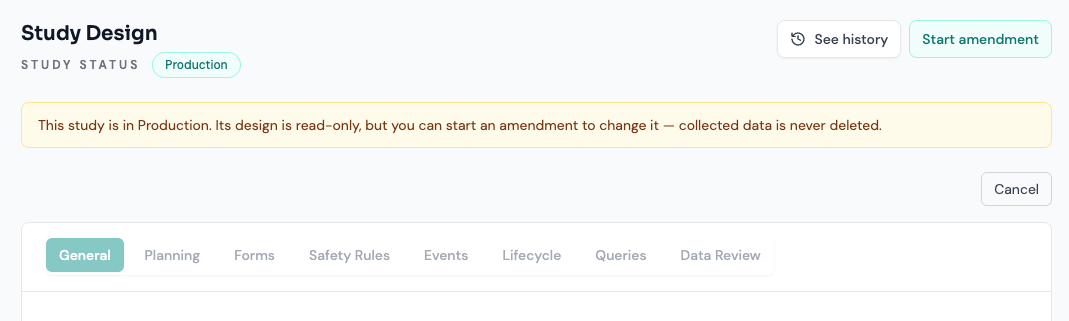
Choosing Start amendment copies the active version into a draft and unlocks the builder. The banner changes to Amendment in progress, and the primary action changes from Save changes to Review changes — a reminder that you are no longer writing directly to the study.
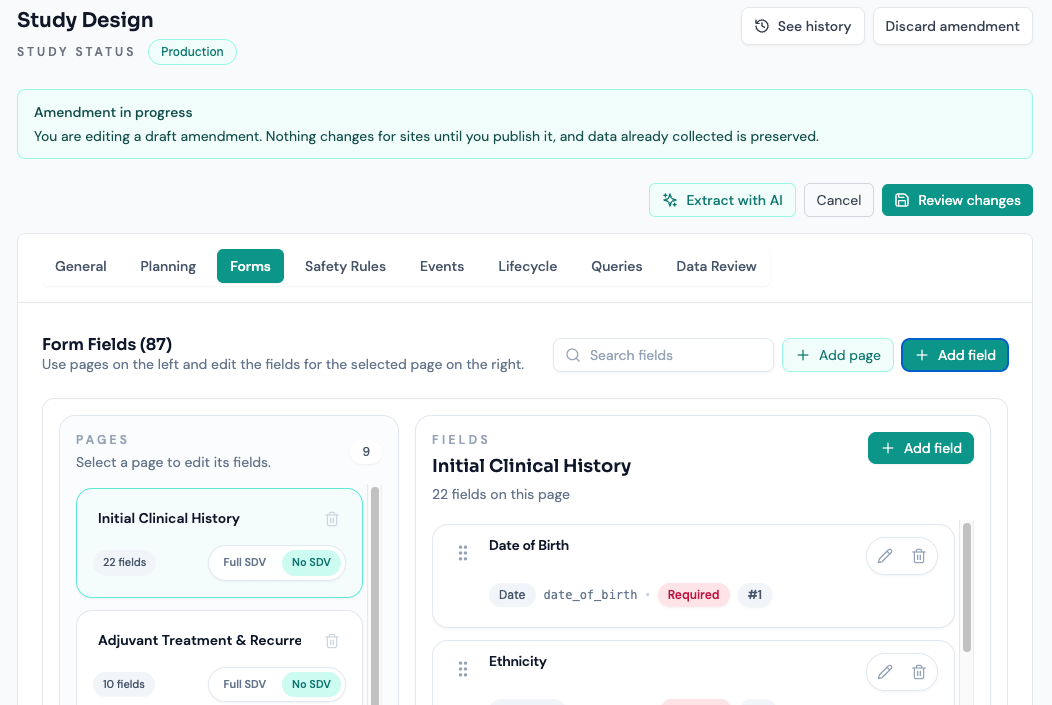
A draft is durable and private. It costs nothing to leave one open, but it does block a second amendment, and anyone with builder access who opens the study will land in your draft. Discard amendment removes it and leaves the active version untouched.
07 The review screen
This is the most important screen in the feature. It answers three questions before anything is committed: what is changing, how serious it is, and what happens to the data already collected.
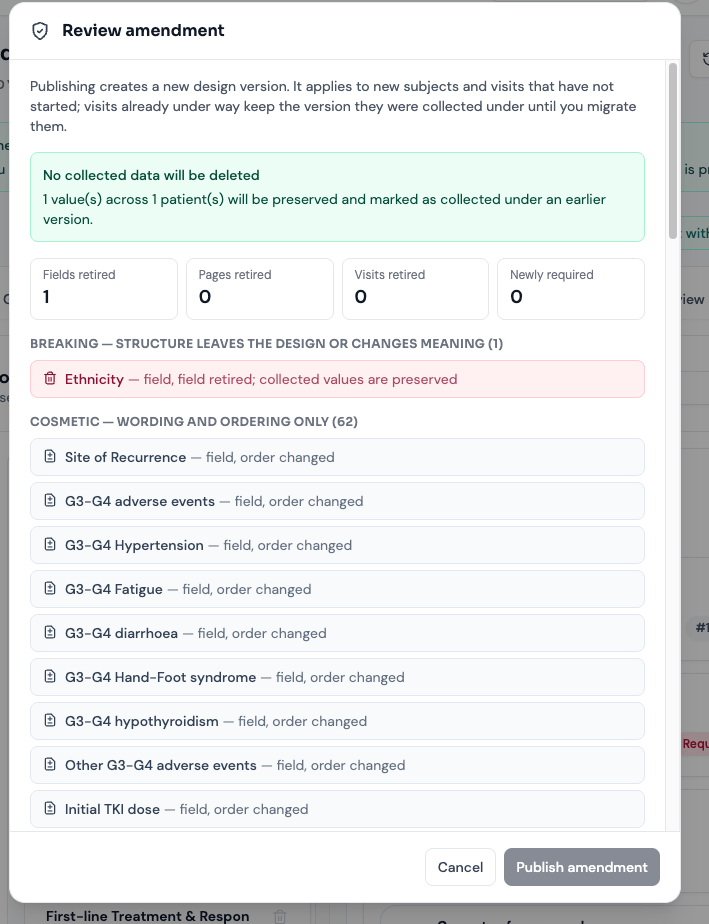
The green panel at the top is the reassurance the rest of this guide exists to justify: it states in numbers how many values will be preserved, and the impact report's “deleted” count is structurally always zero.
| On the review screen | What it tells you |
|---|---|
| Values preserved | How many stored values belong to fields this amendment retires. They survive; this is not a warning. |
| Patients affected | How many subjects hold at least one of those values. |
| Fields / pages / visits retired | How much structure leaves the active design. |
| Newly required | Fields that become required. Expect incomplete forms where they were previously left blank. |
| Reason for change | Required, and written to the audit trail alongside the version number. |
If the draft is identical to its parent, publishing is refused. So is a blank or whitespace-only reason. Both are deliberate: an empty version in the history is worse than no version at all.
08 Retired, not deleted
When you publish an amendment that removes a field, the field's definition is not dropped from the database. It is marked retired, together with the version that retired it. The row stays because the values collected against it are anchored to it — deleting it would orphan them.
What actually happens to a removed field
The same treatment applies to pages, visits, and the link between a page and a visit. Unlinking a page from a visit retires the link rather than the page — the page may still be collected under another visit, and forms already created against that link keep their values.
A retired field is not a dead end. A later amendment can bring it back under its original identity, and the values collected before it was retired come back with it — see section 9.
09 Restoring a retired field
A field removed by an earlier amendment can be brought back. Start an amendment and the builder shows a Restore a retired field panel listing everything previous amendments retired, with the number of values each one still holds.
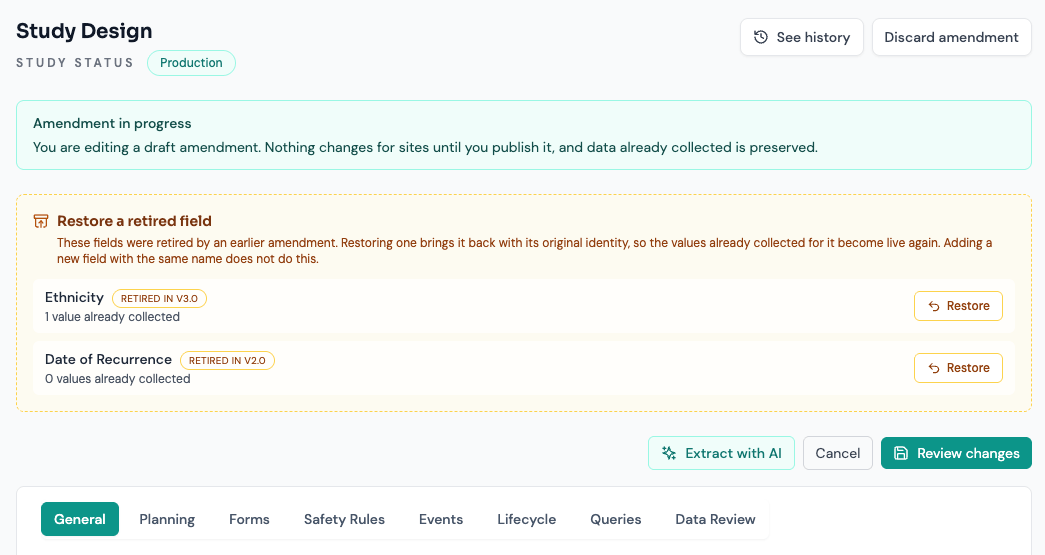
- Start an amendment on the production study.
- In the Restore a retired field panel, choose the field and click Restore. It returns to the builder on its original page — or, if that page has since been retired, on the first page, which the panel tells you in advance.
- Review and publish as normal. The change classifies as Additive: bringing a field back harms nothing that already exists.
On publish, Arion un-retires the original definition rather than creating a second one. The field becomes an ordinary editable field again, and the values collected before it was retired are live data once more — they leave the read-only panel described in section 10.
Adding a new field and giving it the same name produces a different field. It gets a new identity, starts collecting from scratch, and the original values stay retired and read-only — visibly separate from the field that now looks like their home. Only the restore panel reconnects a field to its history, because only it reuses the original identity.
Restoring brings the field back for everyone on the new version. It is not a per-subject operation, and it does not alter any stored value — the values were never changed in the first place, only hidden from the active design.
10 Retired values in the casebook
Preserved data that nobody can see is not much better than deleted data. When a form holds a value whose field has since been retired, the casebook shows it below the active fields, in its own panel, read-only and attributed.
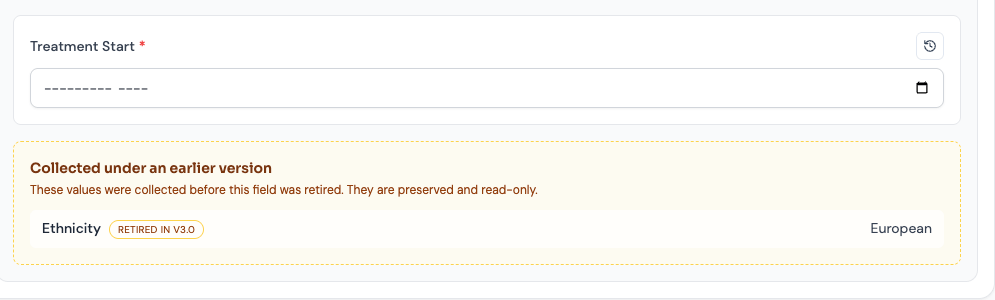
Read-only by design
Editing a retired field would let new data into a field the protocol no longer collects. The value is evidence of what was collected, not a live input.
Excluded from completeness
A retired field is not part of the active design, so it never counts towards required-field or completeness calculations.
Empty values are not shown
If a retired field was never filled in, there is nothing to preserve and no panel appears.
Subjects enrolled after the amendment never see the panel at all: they never collected the field, so there is nothing to attribute.
11 Prospective by default
Publishing an amendment is prospective. It applies to new subjects and to visits that have not started. Visits already under way keep the version they were collected under.
A site part-way through a visit should not have the form change underneath them, and a completed form should not silently acquire requirements that did not exist when it was completed. Reaching back into collected data is a decision the study team takes deliberately, not a side effect of a designer clicking publish.
The practical consequence is one people find surprising until they have seen it once: immediately after publishing, different subjects in the same study are legitimately on different versions. That is the intended state, not drift to be cleaned up.
| After publishing v2.0 | Which design applies |
|---|---|
| Subject enrolled after publication | v2.0 throughout |
| Visit not yet started | v2.0 |
| Visit already under way or complete | v1.0, until migrated |
| ECOA invitation already sent | The version it was issued against |
12 Migrating existing subjects
A migration — a retrospective amendment — moves already-collected data onto a newer version. It re-stamps which design a subject's visits and forms belong to. It still deletes nothing.
Migrations are scoped. You can migrate the whole study, a named set of subjects, or only the data currently sitting on a particular version. Every run is recorded with a report of what moved and what did not.
| Behaviour | Detail |
|---|---|
| Scope | Whole study, selected subject codes, and/or restricted to a source version. |
| Signed data is skipped | Changing the design under a PI-signed form invalidates the signature it was given against. Signed targets are reported rather than moved, unless explicitly included. |
| Locked data is skipped | Same principle: reported, not silently moved, unless explicitly included. |
| Forms follow their visit | A form never sits on a different version from the visit that owns it. |
| Out-of-version values | Values whose field is not in the target version stay preserved and read-only. Note that migrating back to an older version moves the stamp but does not currently make a retired field editable again — see section 14. |
Migration is currently an API and operations task rather than a screen in the application — see section 14. The behaviour described here is fully implemented and audited; only the interface is missing. Plan a migration with whoever administers your deployment.
A migration that skipped every target still succeeds. The report is where you learn that nothing moved because the data was signed. Read the skipped counts before concluding a rollout is complete.
13 Versions and the other workflows
Versioning touches several workflows described in the other guides. The short version of each interaction:
| Workflow | Interaction with versions |
|---|---|
| SDV | The verification plan is computed from the design the form belongs to. Verification records against retired values remain valid — they are evidence about data that was genuinely collected, and that fact does not expire. See the SDV guide. |
| PI signature | A signature is given against a specific rendering of a form. Migrating a signed form would invalidate that, which is why migration skips signed targets by default. |
| Locks | Locked targets are skipped by migration for the same reason. |
| Protocol deviations | Visit-window deviations are evaluated against the window copied onto the visit when it was created, so they were already version-correct before this feature existed. Historical deviations are never retro-invalidated. |
| Eligibility criteria | Criteria are protocol content and are bound to fields, so they travel inside the version snapshot. |
| Testing studies | Versioning is a Production-only regime. In Testing the design is still edited directly, with the existing impact-confirmation flow for destructive changes. See the Study Builder guide. |
14 Permissions, audit, and guard rails
| Action | Requires |
|---|---|
| See the version history | Study visibility |
| Start, edit, or discard an amendment | edit_study_builder |
| Publish an amendment | publish_to_production |
| Migrate subjects to a version | publish_to_production |
Publishing writes an audit entry recording the new version number, the reason for change, the full classified change summary, and what was retired. Migrations are recorded both in the audit trail and in their own migration history, so “when did this subject move from 1.0 to 2.0, and what did it do” is an answerable question.
A production study's design objects cannot be deleted, even by a direct API call that bypasses the amendment screens. Attempting it is refused outright. The data-preservation guarantee does not depend on the user interface being used correctly.
Two fields in the same study may never share an identity, and an amendment that would create one is rejected with an error naming the offending id. This matters more than it sounds: because identities are unique in the database, a duplicate would not create a second field — it would silently overwrite the first, potentially changing the type and meaning of a field that already holds collected values. The same rule applies to pages and to visits. A page and a field may share an id without conflict; the rule is per object type.
15 Current limits
Stated plainly so that nobody plans around behaviour that does not exist yet. None of these weakens the guarantee in section 1.
| Limit | What it means for you |
|---|---|
| No migration screen | Retrospective amendments are run through the API by whoever administers the deployment. |
| Migration runs synchronously | Comfortable for studies of a few hundred subjects. A very large study should be migrated in scoped batches. |
| Statuses are not recomputed after migration | Migrating a form onto a version with a new required field does not yet mark it incomplete or raise a query. Check affected forms after a migration that adds requirements. |
| Exports are not version-aware | Exports carry no version column, and retired values are not flagged in them. |
| No second-approver gate | Publishing needs the permission and a reason; it does not yet require a different person from the author. Enforce separation of duties by procedure for now. |
| Queries on retired fields are not auto-closed | An open query can still reference a retired field. Close these manually. |
| One version per study, not per centre | All centres move together. Staggered rollout by IRB approval date is not yet supported. |
| No version history screen | The history is available through the API and the audit trail, but has no dedicated page yet. |
| Migrating back does not un-retire a field | Migration moves the version stamp, but the casebook resolves fields from the active design. A form migrated back to an older version shows the retired field in the read-only panel rather than as an editable field. |
16 Quick reference
| Question | Answer |
|---|---|
| I removed a field. Did I lose the data? | No. It is preserved, shown read-only on the forms that collected it, and badged with the version that retired it. |
| Why do two subjects show different fields? | They are on different design versions. Publishing is prospective, so subjects enrolled before an amendment stay where they were until migrated. |
| Why is my version 1.1 and not 2.0? | Every change in the amendment was cosmetic, so it published as a minor revision. |
| Why can't I publish? | Either the draft contains no changes, or the reason for change is empty. |
| Someone else's draft is open. Can I start my own? | No — one draft per study. Coordinate, then continue or discard theirs. |
| I discarded an amendment. What happened to the study? | Nothing. The active version is untouched. |
| I get a “duplicate field id” error when saving. | The design sent two objects with the same identity. Each field, page and visit needs its own. If you were trying to bring a retired field back, use the restore panel (section 9) rather than adding it manually. |
| Can I get a retired field back? | Yes. Start an amendment and use the Restore a retired field panel. Its old values come back with it. Do not re-add the field by hand — that creates a different field and leaves the old values retired. |
| Can I switch a subject back to an older version? | You can migrate them back, which restores the version stamp. It does not currently restore a retired field to an editable state. |
| Is the study design still editable in Testing? | Yes. Versioning applies only from the move to Production onwards. |
Removing a field from a live study hides it from the current design. It never touches the data already collected against it.